Advanced Parental Control Settings: Comprehensive Digital Safety Guide for 2026

Implementing Advanced Parental Control Settings on All Devices: A 4-Step Guide for Digital Safety in 2026
In an increasingly digital world, ensuring the safety and well-being of our children online has become a paramount concern for parents. The internet, while a powerful tool for learning and connection, also presents a myriad of challenges, from inappropriate content and cyberbullying to excessive screen time and online predators. As technology evolves at a rapid pace, so too must our strategies for protecting the younger generation. This comprehensive guide, focused on advanced parental control, will equip you with the knowledge and tools to implement robust digital safety measures across all your family’s devices in 2026 and beyond.
The landscape of online threats is constantly shifting. What was considered adequate protection a few years ago might be insufficient today. Children are exposed to digital content and interactions at younger ages than ever before, making proactive and sophisticated parental control essential. This isn’t just about blocking websites; it’s about fostering a safe digital environment, teaching responsible online behavior, and maintaining open communication with your children about their online experiences. Our 4-step guide will walk you through the process, from understanding the core principles to leveraging the most advanced tools available.
Understanding the Evolving Digital Landscape and the Need for Advanced Parental Control
Before diving into specific settings, it’s crucial to grasp why advanced parental control is no longer a luxury but a necessity. The digital world of 2026 is characterized by:
- Ubiquitous Connectivity: Children have access to the internet through multiple devices – smartphones, tablets, gaming consoles, smart TVs, and even smart home devices. Each of these presents a potential entry point for unsupervised access.
- Sophisticated Content Algorithms: Social media platforms and video-sharing sites use complex algorithms that can expose children to content that is not age-appropriate, often through seemingly innocuous recommendations.
- Gaming and In-App Purchases: Online gaming, while social and engaging, can expose children to unregulated chat, cyberbullying, and the temptation of expensive in-app purchases.
- Privacy Concerns: Children’s personal data can be vulnerable if not properly protected, leading to potential privacy breaches or exploitation.
- Mental Health Impact: Excessive screen time and exposure to curated online lives can negatively impact a child’s self-esteem and mental health.
- AI-Generated Content and Deepfakes: The rise of AI-generated content, including realistic deepfakes, adds another layer of complexity, making it harder for children (and even adults) to discern truth from fiction.
Traditional parental controls often focused solely on website blocking. However, advanced parental control encompasses a much broader spectrum, including screen time management, app usage monitoring, location tracking (with consent), safe search enforcement, communication monitoring, and even behavior analysis to identify potential risks. It’s about creating a holistic digital safety net that adapts to your child’s age and evolving online activities.
Step 1: Establishing a Foundation – Device-Specific Parental Controls
The first step in building an effective advanced parental control strategy is to leverage the native controls available on each device and operating system. These provide a baseline level of protection and are often the easiest to configure. Don’t underestimate their power, especially when combined with other solutions.
1.1. Smartphones and Tablets (iOS and Android)
iOS Devices (iPhones, iPads): Screen Time
Apple’s ‘Screen Time’ is a powerful built-in feature that offers extensive advanced parental control capabilities:
- Downtime: Schedule times when apps and notifications are blocked, except for phone calls and apps you choose to allow. This is excellent for ensuring homework or bedtime routines are respected.
- App Limits: Set daily time limits for app categories (e.g., social networking, games) or specific apps. This helps manage excessive use.
- Communication Limits: Control who your child can communicate with during allowed times and downtime. This is crucial for preventing unwanted contact.
- Always Allowed Apps: Select apps that can be used at all times, such as educational tools or communication apps for parents.
- Content & Privacy Restrictions: This is where the true power of advanced parental control on iOS lies. You can restrict:
- iTunes & App Store Purchases: Prevent accidental or unauthorized purchases and downloads.
- Allowed Apps: Turn off built-in apps like Safari, Camera, or FaceTime if desired.
- Content Restrictions: Filter web content (e.g., limit adult websites, allow only specific websites), restrict movie, TV, and app ratings, and block explicit language in music.
- Privacy Settings: Prevent changes to privacy settings like location services, contacts, or photos.
- Allow Changes: Prevent changes to Passcode, Account, Cellular Data, and Volume Limit settings. This stops children from circumventing your controls.
- Set a Screen Time Passcode: Crucially, set a unique passcode different from the device’s unlock code to prevent your child from changing the settings.
Android Devices (Google Family Link)
Google Family Link is Android’s comprehensive solution for advanced parental control:
- Account Creation: You can create a Google Account for your child under 13 (or the applicable age in your country) and manage it from your own Google Account.
- App Approvals: Approve or block apps your child wants to download from the Google Play Store.
- App Activity: See how much time your child spends on their favorite apps with activity reports.
- Screen Time Limits: Set daily screen time limits and a device bedtime for your child’s Android devices.
- Device Lock: Remotely lock your child’s device at any time, which is useful for family dinners or study time.
- Location Tracking: See your child’s device location, which can be useful for safety.
- Content Restrictions: Manage settings for Google Play (app ratings, movies, books), Google Search (SafeSearch), and YouTube (Restricted Mode).
- Web Filters: Use Chrome’s built-in filters to block specific sites or allow only certain ones.
1.2. Computers (Windows and macOS)
Both Windows and macOS offer robust built-in options for advanced parental control:
Windows (Microsoft Family Safety)
- Screen Time Limits: Set time limits for app and game usage across Windows, Xbox, and Android devices.
- Content Filters: Block inappropriate apps, games, and websites. Microsoft Edge browser is best for this, as filters are most effective there.
- Spending Limits: Add money to your child’s Microsoft account and set spending limits for the Microsoft Store.
- Activity Reports: Get weekly email reports detailing your child’s online activity.
- Location Tracking: See your family members’ locations on a map.
macOS (Screen Time)
Similar to iOS, macOS integrates Screen Time for advanced parental control:
- Downtime and App Limits: Identical functionality to iOS for managing usage.
- Content & Privacy: Restrict explicit content, web access (adult websites, allowed websites only), store purchases, and privacy settings.
- Communication Limits: Control who your child can communicate with, especially useful for Messages and FaceTime.
- Always Allowed Apps: Designate essential apps that are always accessible.
1.3. Gaming Consoles (PlayStation, Xbox, Nintendo Switch)
Each major gaming console has its own set of advanced parental control features:
- PlayStation (PS4/PS5): Set age restrictions for games, limit play time, restrict web browser access, disable chat and messaging, and manage spending on the PlayStation Store. Create separate user accounts for each child.
- Xbox (Xbox One/Series X|S): Utilize Microsoft Family Safety for comprehensive controls, including screen time, content filtering, friend requests, and communication settings.
- Nintendo Switch: Use the Nintendo Switch Parental Controls app on your smartphone to set play time limits, restrict software by age rating, and disable in-game communication.
Remember to set strong, unique passwords for all parental control settings to prevent circumvention.
Step 2: Implementing Network-Level Parental Controls
While device-specific controls are vital, they don’t cover every internet-connected device in your home (e.g., smart TVs, guest devices). Network-level advanced parental control adds an extra layer of security by filtering content at the router level, affecting all devices connected to your home Wi-Fi.
2.1. Router-Based Controls
Many modern Wi-Fi routers come with built-in parental control features. These can vary significantly in their sophistication:
- Content Filtering: Block access to specific websites or categories of websites (e.g., adult, gambling, social media) for all devices or specific devices on your network.
- Time Scheduling: Schedule internet access for certain devices or for the entire network. This is great for enforcing ‘internet-free’ times.
- Device Prioritization: While not strictly a control, some routers allow you to prioritize certain devices for bandwidth, which can indirectly manage usage.
How to access: Log in to your router’s administration interface (usually via a web browser using its IP address, e.g., 192.168.1.1). Look for sections like ‘Parental Controls,’ ‘Access Control,’ or ‘Security.’ Consult your router’s manual for specific instructions.
2.2. DNS-Based Filtering (e.g., OpenDNS FamilyShield)
For more robust network-level advanced parental control, consider changing your router’s DNS (Domain Name System) settings to a family-friendly DNS service like OpenDNS FamilyShield. This service filters out adult content, illegal content, and phishing sites before they even reach your devices. It’s a highly effective, set-it-and-forget-it solution.
- Pros: Filters all devices connected to your network, including those without specific parental control apps. Free for basic services.
- Cons: Less granular control than app-based solutions (e.g., can’t set time limits for specific apps). Can be bypassed by tech-savvy users changing their device’s DNS settings.
2.3. Smart Home Devices and IoT
Don’t forget the growing number of smart home devices that connect to the internet. While many don’t have screens, they can still be avenues for inappropriate content (e.g., smart speakers playing explicit music or answering inappropriate questions). Check the settings for each device (e.g., Amazon Alexa, Google Home) for content filters or restricted modes.
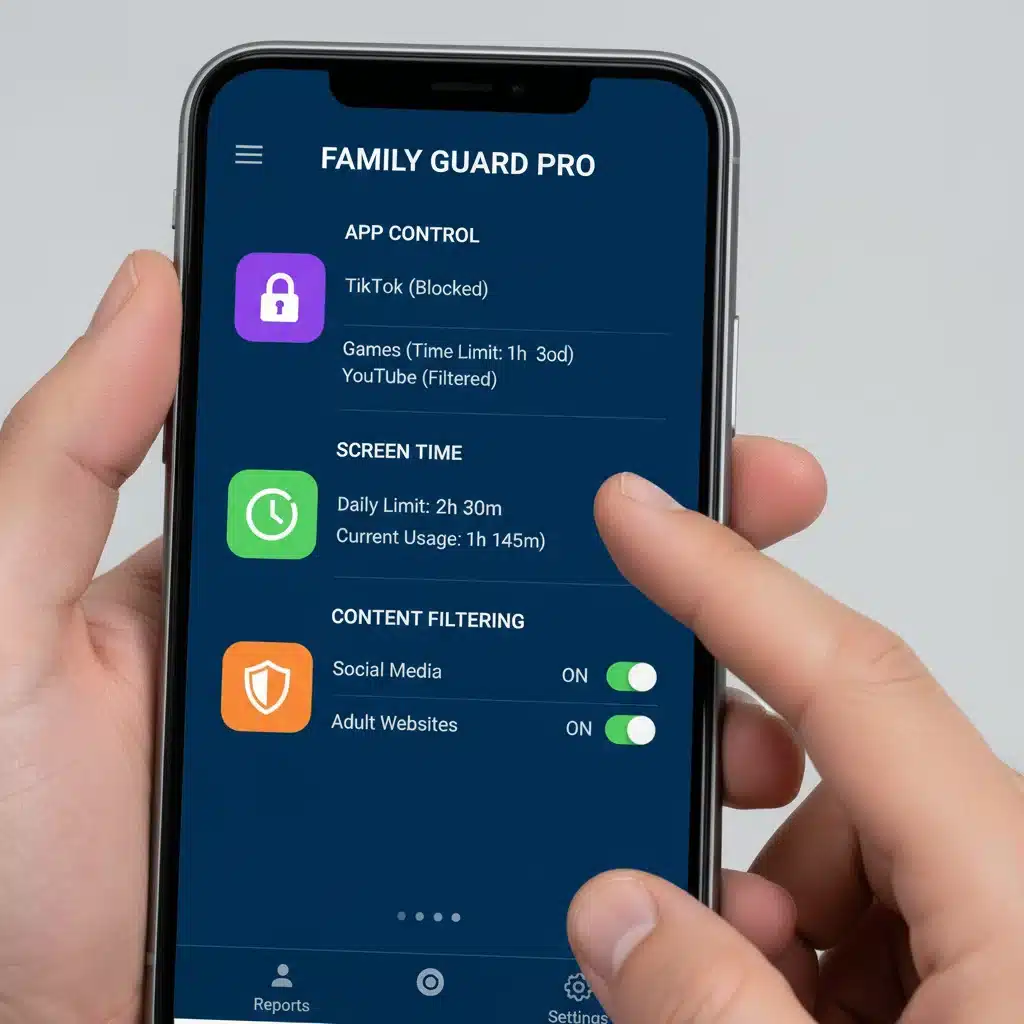
Step 3: Leveraging Third-Party Advanced Parental Control Software
For the most comprehensive and centralized advanced parental control, third-party software and services are invaluable. These often offer features that go beyond what native and network controls provide, consolidating management into a single dashboard.
3.1. All-in-One Solutions (e.g., Bark, Qustodio, Net Nanny)
These services typically offer a wide range of features across multiple platforms:
- Content Monitoring: Beyond just blocking, some services use AI to monitor text messages, emails, social media, and web browsing for signs of cyberbullying, self-harm, drug use, or other concerning behaviors. They alert parents to potential issues without requiring constant manual review.
- Screen Time Management: Advanced scheduling, instant pause features, and detailed usage reports.
- Location Tracking: Real-time location tracking and geofencing (alerts when a child enters or leaves a defined area).
- App Blocking & Filtering: Block specific apps or entire categories.
- Web Filtering: More granular and often harder to bypass than basic router-level filters.
- YouTube Monitoring: Specific tools to filter and monitor content on YouTube.
- Social Media Monitoring: Alerts for concerning activity on popular social media platforms.
Choosing a Solution:
- Compatibility: Ensure the software supports all your family’s devices (iOS, Android, Windows, macOS, Kindle Fire, etc.).
- Features: Prioritize features that address your family’s specific concerns (e.g., social media monitoring if your teen is active, screen time for younger children).
- Ease of Use: A user-friendly dashboard is crucial for effective management.
- Privacy Policy: Understand how the service handles your child’s data.
- Cost: These are typically subscription-based services.
3.2. VPNs and Their Role (or lack thereof) in Parental Controls
A common question arises regarding VPNs (Virtual Private Networks). While VPNs enhance privacy and security for adults, they can also bypass parental controls. If your child uses a VPN, it can circumvent content filters and monitoring. Some advanced parental control solutions can detect and block VPN usage on your child’s devices, or you may need to educate your child about why VPNs are restricted on their devices.
Step 4: The Human Element – Communication, Education, and Adaptability
No amount of technology, however advanced, can replace open communication and education. Advanced parental control is most effective when it’s part of a broader strategy that includes ongoing dialogue with your children.
4.1. Open Communication and Digital Citizenship
- Discuss Rules and Expectations: Involve your children in setting digital rules. Explain why these rules and controls are in place (e.g., to protect them from harm, ensure healthy habits), rather than just imposing them.
- Foster Trust: Let them know that parental controls are a safety measure, not a sign of distrust. Encourage them to come to you if they encounter anything uncomfortable or confusing online.
- Teach Critical Thinking: Help them develop critical thinking skills to evaluate online information, identify fake news, and understand the permanence of their digital footprint.
- Digital Etiquette and Empathy: Teach them about cyberbullying, online respect, and the importance of being kind and responsible digital citizens.
4.2. Educating Your Children on Online Risks
Knowledge is power. Equip your children with an understanding of potential online dangers:
- Stranger Danger: Explain the risks of interacting with unknown individuals online and the importance of never sharing personal information.
- Phishing and Scams: Teach them to recognize suspicious emails, messages, or links.
- Privacy Settings: Show them how to manage privacy settings on their social media and gaming accounts.
- Consequences of Posting: Emphasize that anything posted online can be permanent and seen by many.
- Deepfakes and AI: Discuss the emerging threats of AI-generated content and how to question what they see online.
4.3. Regular Review and Adaptation
The digital world is dynamic, and so should be your advanced parental control strategy:
- Regularly Review Settings: As your children grow, their needs and online activities will change. What’s appropriate for a 7-year-old is different for a 14-year-old. Adjust settings accordingly.
- Stay Informed: Keep up-to-date with new apps, platforms, and online trends that your children might be using. Follow reputable digital safety blogs and news sources.
- Monitor Activity (Respectfully): Use the monitoring features of your chosen parental control solutions to stay aware of their online behavior, but do so in a way that respects their developing autonomy. The goal is to intervene when necessary, not to snooping constantly.
- Involve Your Children: As they mature, involve them more in the decision-making process regarding their digital boundaries. This helps them develop self-regulation.

Beyond the 4 Steps: Additional Considerations for 2026
As we look further into 2026 and beyond, there are several other elements to consider for a truly comprehensive advanced parental control strategy:
Smart Devices and IoT Ecosystems
The proliferation of smart devices means that parental controls need to extend beyond traditional screens. Consider:
- Smart Speakers: Configure explicit content filters, disable voice purchasing, and manage which skills or apps can be enabled.
- Smart TVs: Utilize built-in parental controls for streaming services (Netflix, Disney+, YouTube Kids) and app access.
- Wearable Tech: Smartwatches and other wearables often have communication features; ensure these are managed.
- Gaming Platforms: Beyond consoles, PC gaming platforms like Steam, Epic Games Store, and even Roblox have their own account settings for content, spending, and communication that need to be configured.
Cybersecurity Hygiene for the Whole Family
Advanced parental control isn’t just about filtering; it’s also about foundational cybersecurity practices:
- Strong, Unique Passwords: Teach children the importance of strong passwords and using a password manager.
- Two-Factor Authentication (2FA): Enable 2FA on all accounts that support it, especially for email and social media.
- Software Updates: Ensure all devices and apps are kept up-to-date to patch security vulnerabilities.
- Antivirus/Anti-Malware: Install reputable security software on all family computers and advise on mobile security apps.
- Public Wi-Fi Awareness: Educate children on the risks of using unsecured public Wi-Fi and the importance of not accessing sensitive information on such networks.
Digital Well-being and Mental Health
The goal of advanced parental control should also include fostering healthy digital habits and protecting mental health:
- Encourage Offline Activities: Balance screen time with physical activity, creative play, reading, and face-to-face social interactions.
- Model Good Behavior: Children learn by example. Be mindful of your own screen time and device usage.
- Recognize Signs of Digital Distress: Be aware of changes in your child’s mood, sleep patterns, or behavior that might indicate issues related to their online experiences.
- Seek Professional Help: If you suspect your child is struggling with online addiction, cyberbullying, or exposure to harmful content, don’t hesitate to seek guidance from school counselors or mental health professionals.
Conclusion: A Proactive and Adaptive Approach to Digital Safety
The digital world offers incredible opportunities for learning, creativity, and connection. By implementing a multi-layered strategy of advanced parental control, combining device-specific settings, network-level filters, third-party software, and most importantly, open communication and education, you can empower your children to navigate this world safely and responsibly. Digital safety is not a one-time setup; it’s an ongoing process of adaptation, learning, and conversation. As technology continues to evolve, so too must our commitment to protecting the next generation online. By staying informed and proactive, you can ensure your family enjoys the benefits of the digital age while minimizing its risks, creating a secure and nurturing online environment for years to come.