Mastering Home Media Server Setup: Your 2026 Guide to Seamless Entertainment
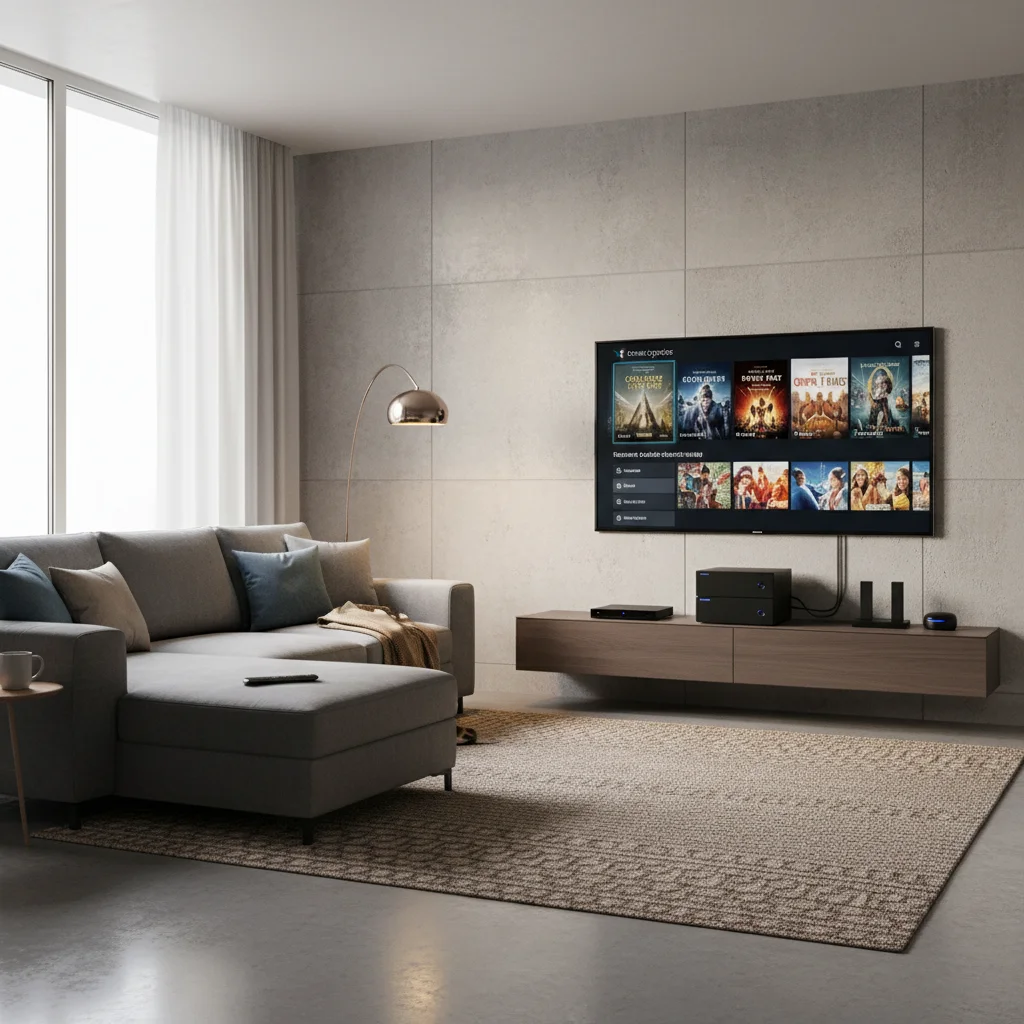
In an era where digital content reigns supreme, the desire for a personalized, seamless entertainment experience at home has never been stronger. Gone are the days of juggling multiple streaming subscriptions, dealing with buffering issues, or sifting through disorganized digital libraries. The solution? A robust Home Media Server. For 2026, setting up your own media server is not just a tech enthusiast’s hobby; it’s a practical, powerful way to centralize your entire digital media collection – from movies and TV shows to music, photos, and even home videos – making it accessible on any device, anywhere in your home, and often, beyond.
This comprehensive guide will walk you through every step of building, configuring, and optimizing your ideal Home Media Server. We’ll demystify the hardware choices, explore the best software platforms, and provide actionable tips to ensure your entertainment hub is ready for the demands of 2026 and beyond. Whether you’re a seasoned tech enthusiast or a complete beginner, prepare to transform your home entertainment landscape.
Why You Need a Home Media Server in 2026
The digital age has brought an explosion of content, but also a fragmentation of where that content lives. Streaming services are plentiful, but each comes with its own catalog and subscription fee. Physical media, while still beloved by many, requires dedicated players and storage space. A Home Media Server offers a compelling alternative, consolidating all your media into one easily manageable, always-available location.
Centralized Access and Organization
Imagine having all your movies, TV series, music albums, and family photos meticulously organized and instantly accessible from a single interface. A media server makes this a reality. Instead of searching across various platforms or external hard drives, everything is cataloged, with rich metadata, cover art, and descriptions, creating a Netflix-like experience for your personal library.
Uninterrupted Streaming and Offline Access
Tired of internet outages disrupting your movie night? With a Home Media Server, your content is stored locally. This means smooth, buffer-free streaming within your home network, regardless of your internet connection’s stability or speed (though a good internal network is crucial). Many server solutions also offer offline viewing capabilities for your mobile devices, perfect for travel.
Cost Savings in the Long Run
While there’s an initial investment in hardware, a media server can lead to significant long-term savings. You can reduce dependence on multiple streaming subscriptions, especially for content you already own or can acquire legally. Furthermore, you gain complete control over your media, free from the whims of streaming service content rotations.
Privacy and Data Ownership
In an increasingly data-conscious world, owning your data is paramount. A Home Media Server puts you in control. Your viewing habits and media library remain private, stored on your own hardware, rather than residing on third-party servers. This offers a level of privacy and data ownership that commercial streaming services simply cannot match.
Customization and Flexibility
From choosing your preferred hardware to selecting the perfect software, a home media server is highly customizable. You can tailor it to your specific needs, whether that’s prioritizing storage capacity, processing power for transcoding, or specific features like live TV integration or home automation. The flexibility allows for a truly personalized entertainment system.
Choosing the Right Hardware for Your Home Media Server
The foundation of any great Home Media Server is its hardware. This is where your media will live and where the processing power for streaming and organizing will come from. Your choice will depend on your budget, the size of your media library, the number of simultaneous users, and whether you need real-time transcoding.
Option 1: Dedicated Mini PC or Old Desktop
If you have an old desktop computer gathering dust, it can be reborn as a powerful Home Media Server. Mini PCs like Intel NUCs or similar small form factor machines are also excellent choices, offering a good balance of power, low energy consumption, and a small footprint.
- Pros: Often more powerful than NAS devices for the price, highly flexible, can run various operating systems and software.
- Cons: Can be larger and consume more power than a NAS, might require more technical know-how to set up.
- Key Components:
- Processor: An Intel Core i3/i5 (7th Gen or newer) or AMD Ryzen 3/5 is usually sufficient. For 4K transcoding, aim for a more powerful CPU with Quick Sync Video (Intel) or equivalent (AMD).
- RAM: 8GB is a good starting point, especially if you plan to run other services.
- Storage: A small SSD (120GB-250GB) for the operating system and software, plus large HDDs (4TB+) for your media. Consider RAID for data redundancy.
- Network: Gigabit Ethernet is essential for fast data transfer.
Option 2: Network Attached Storage (NAS) Device
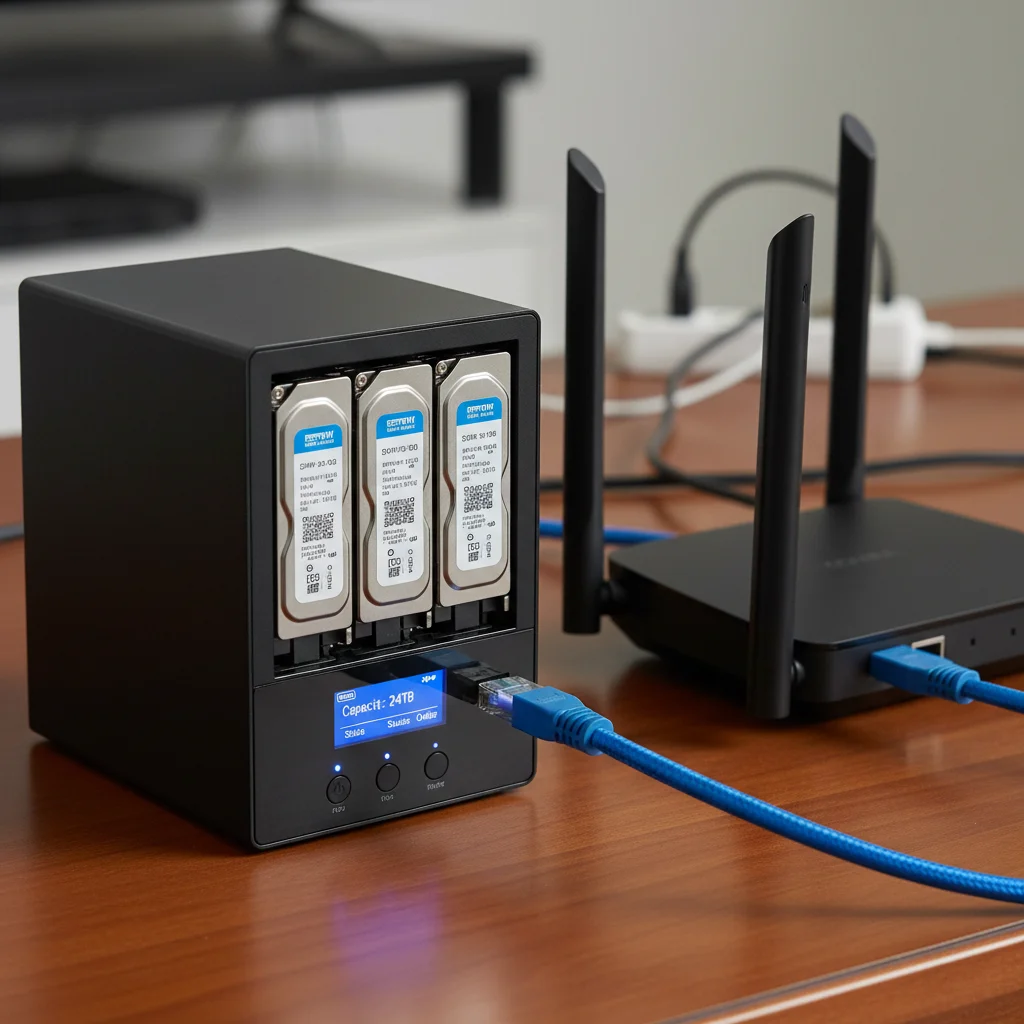
NAS devices are purpose-built for centralized storage and file sharing, making them ideal for a Home Media Server. Brands like Synology and QNAP offer user-friendly interfaces and dedicated media server apps.
- Pros: Easy to set up and manage, low power consumption, excellent for data redundancy (RAID), compact.
- Cons: Can be less powerful than a dedicated PC for transcoding, higher upfront cost for comparable storage.
- Key Components:
- CPU: For basic streaming, a dual-core ARM processor is fine. For 1080p transcoding, look for an Intel Celeron or similar. For 4K transcoding, a more powerful Intel Atom or Core i3/i5 NAS is recommended.
- RAM: 2GB-4GB is typical, upgradeable on some models.
- Drive Bays: Choose a NAS with at least 2 bays for RAID 1 (mirroring) or more for RAID 5/6 (parity) to protect your data.
- Hard Drives: Use NAS-specific drives (e.g., Western Digital Red, Seagate IronWolf) for reliability.
Option 3: Raspberry Pi (for light users)
For those on a tight budget or with smaller media libraries, a Raspberry Pi can act as a basic Home Media Server, especially for streaming content that doesn’t require intensive transcoding.
- Pros: Extremely low cost, very low power consumption, small footprint, great for learning.
- Cons: Limited processing power, not suitable for multiple simultaneous streams or 4K transcoding, relies on external storage.
- Key Components:
- Model: Raspberry Pi 4 (4GB or 8GB RAM version).
- Storage: High-speed microSD card for the OS, and a large external USB 3.0 hard drive for media.
- Power Supply: Official Raspberry Pi power supply for stability.
Storage Considerations: The Heart of Your Media
Regardless of your chosen hardware, storage is paramount. Your media library will grow, so plan for expansion. Consider these factors:
- Capacity: Start with at least 4TB-8TB of storage. High-quality 4K movies can be 50GB-80GB each.
- Redundancy: RAID (Redundant Array of Independent Disks) is crucial for protecting your data. RAID 1 (mirroring) duplicates data across two drives, while RAID 5/6 offers better capacity and can withstand multiple drive failures.
- Drive Type: For media storage, traditional Hard Disk Drives (HDDs) offer the best cost-per-gigabyte. NAS-specific drives are recommended for their reliability in 24/7 operation. SSDs are great for the OS and frequently accessed files but are expensive for large media libraries.
Setting Up Your Home Media Server Software
Once your hardware is in place, the next crucial step is selecting and configuring the software that will transform your machine into a fully functional Home Media Server. This software manages your media, provides a user interface, and handles streaming and transcoding.
Popular Media Server Software Options
Several excellent options are available, each with its strengths. The most popular choices for a Home Media Server are Plex and Jellyfin.
Plex Media Server
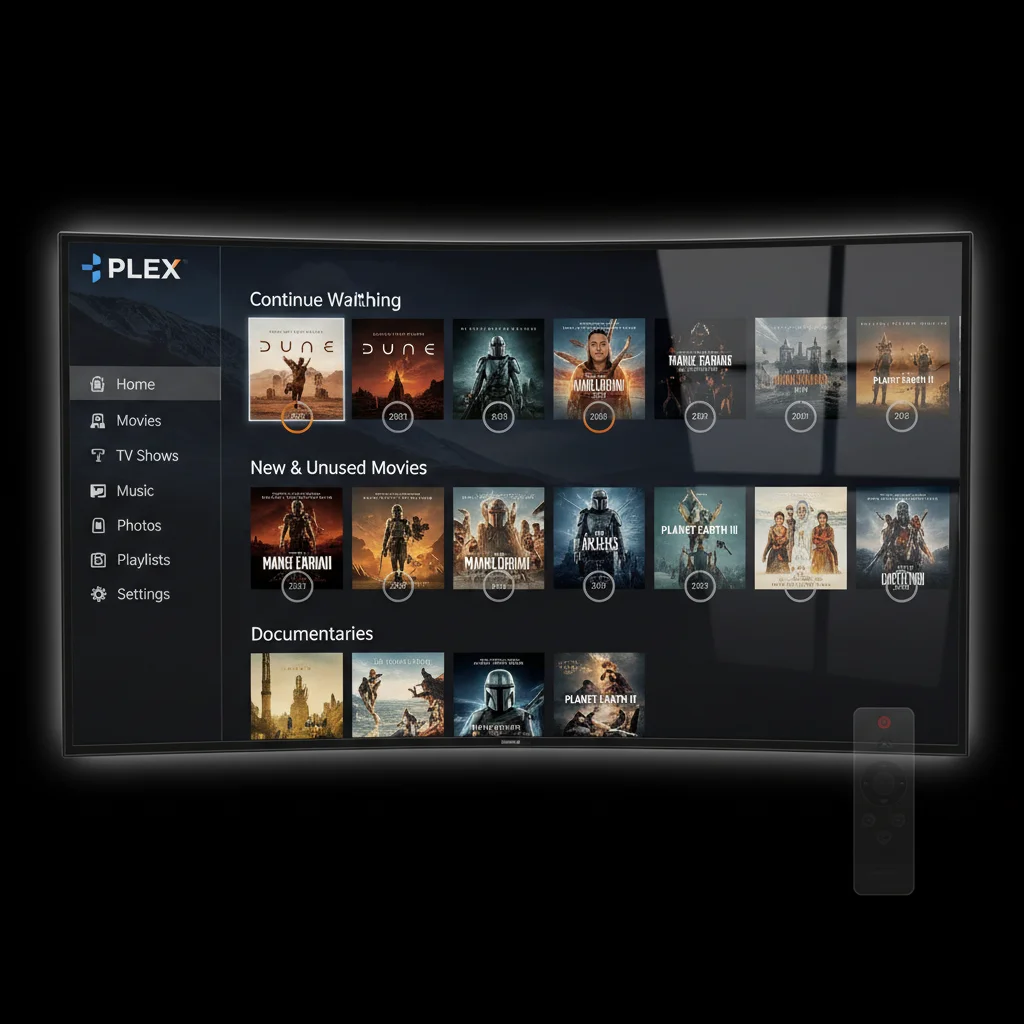
Plex is arguably the most popular and user-friendly media server software. It offers a beautiful, intuitive interface and extensive features.
- Pros: Excellent user interface, broad client support (smart TVs, Roku, Apple TV, mobile, web browsers), robust metadata fetching, remote access capabilities, live TV & DVR (with Plex Pass).
- Cons: Some advanced features (e.g., hardware transcoding, mobile syncing) require a Plex Pass subscription. It’s a closed-source solution.
- Setup Overview:
- Install Plex Media Server: Download and install the server software on your chosen hardware (Windows, macOS, Linux, NAS).
- Create a Plex Account: Sign up for a free account.
- Configure Libraries: Point Plex to the folders where your movies, TV shows, music, and photos are stored. Plex will automatically scan and organize them.
- Install Clients: Download the Plex app on your streaming devices, smart TVs, or mobile phones and log in.
- Enable Remote Access: Configure port forwarding on your router (if necessary) to access your media outside your home network.
Jellyfin
Jellyfin is a free, open-source alternative to Plex and Emby. It offers similar functionalities without any subscription fees or proprietary restrictions.
- Pros: Completely free and open-source, no feature limitations, strong community support, highly customizable, respects user privacy.
- Cons: Client support is good but not as extensive as Plex, interface might be less polished for some users, requires a bit more technical comfort.
- Setup Overview:
- Install Jellyfin Server: Download and install the server software on your hardware (Windows, macOS, Linux, Docker, NAS).
- Initial Configuration: Access the web interface, set up an admin user, and define your media libraries.
- Install Clients: Download Jellyfin apps for your devices (Android, iOS, Roku, Fire TV, Kodi plugin, web browser).
- Configure Remote Access: Set up port forwarding on your router for external access, if desired.
Other Options (for specific needs)
- Emby: Similar to Plex but with more self-hosting control. Offers a premium subscription for advanced features.
- Kodi: A powerful media player software, but less of a server and more of a local client. Can be used in conjunction with a file server or NAS.
- Universal Media Server (UMS): A DLNA-compliant UPnP media server that can stream to many devices, but lacks the rich interface and metadata features of Plex/Jellyfin.
Operating System Choices
The operating system for your Home Media Server depends on your hardware and comfort level:
- Windows: Familiar to many, easy to install software. Can be resource-intensive.
- Linux (Ubuntu Server, Debian): Lightweight, powerful, and free. Ideal for dedicated servers, but requires command-line familiarity.
- FreeNAS/TrueNAS CORE: A powerful, free, open-source NAS operating system based on FreeBSD. Excellent for data integrity and advanced storage features.
- Unraid: A popular paid OS for home servers, known for its flexible storage array (allows mixing drive sizes) and Docker container support.
Organizing Your Media Library for the Best Experience
A well-organized media library is the cornerstone of an enjoyable Home Media Server experience. Consistent naming conventions and folder structures help your media server software correctly identify and categorize your content, ensuring accurate metadata and cover art.
Standard Naming Conventions
Adhering to standard naming conventions is crucial for Plex, Jellyfin, and other media servers to function optimally. Here are general guidelines:
- Movies:
/Movies/Movie Title (Year)/Movie Title (Year).ext
Example:/Movies/Inception (2010)/Inception (2010).mkv - TV Shows:
/TV Shows/Show Name/Season XX/Show Name - SXXEXX - Episode Title.ext
Example:/TV Shows/The Mandalorian/Season 01/The Mandalorian - S01E01 - Chapter 1.mkv - Music:
/Music/Artist Name/Album Name/Track Number - Track Title.ext
Example:/Music/Pink Floyd/The Dark Side of the Moon/01 - Speak to Me.flac - Photos:
/Photos/Year/Month/Description.jpg
Example:/Photos/2023/07/Family Vacation Beach.jpg
Tools like FileBot can automate renaming and organizing your media, saving you countless hours.
Metadata and Artwork
Your media server software will automatically fetch metadata (descriptions, cast, ratings) and artwork from online databases. Ensure your files are named correctly to facilitate this process. If you encounter issues, most media servers allow manual editing of metadata.
Optimizing Your Home Network for Streaming
A powerful Home Media Server is only as good as the network it operates on. A robust home network ensures smooth, buffer-free streaming to all your devices, especially for high-resolution content like 4K.
Wired vs. Wireless Connections
- Server Connection: Always connect your media server directly to your router via an Ethernet cable. Gigabit Ethernet is the minimum recommendation. This provides the most stable and fastest connection.
- Client Connections: For devices that will stream high-bandwidth content (4K TVs, gaming consoles), a wired connection is ideal. For other devices (laptops, phones), Wi-Fi can suffice, but ensure you have a strong signal.
Router and Network Infrastructure
- Gigabit Router: Ensure your router supports Gigabit Ethernet (1000 Mbps) on all its ports. Most modern routers do, but older ones might be limited to 100 Mbps, which can bottleneck your streaming.
- Wi-Fi Standards: For wireless streaming, Wi-Fi 5 (802.11ac) or Wi-Fi 6 (802.11ax) routers are recommended. Place your router centrally and consider mesh Wi-Fi systems for larger homes to ensure good coverage.
- Network Switches: If you have more wired devices than your router has ports, use a Gigabit Ethernet switch to expand connectivity.
Transcoding Explained
Transcoding is the process of converting a media file from one format to another in real-time. This is crucial when your playback device (e.g., an old smart TV or a mobile phone on a slow connection) cannot directly play the original file format or bitrate from your Home Media Server.
- Why it’s needed: Different devices support different codecs and resolutions. Transcoding ensures compatibility and adjusts the bitrate to suit the network conditions.
- CPU vs. Hardware Transcoding:
- CPU Transcoding: Relies solely on your server’s processor. Can be very CPU-intensive, especially for 4K content, potentially slowing down your server.
- Hardware Transcoding: Utilizes dedicated hardware (like Intel Quick Sync Video or NVIDIA NVENC) built into modern CPUs or GPUs. This is significantly more efficient and less taxing on your CPU, making it highly recommended for 4K streaming or multiple simultaneous streams. Plex Pass or Jellyfin (with appropriate setup) can leverage hardware transcoding.
Advanced Features and Expanding Your Home Media Server
Once you have the basics down, your Home Media Server can evolve into a much more powerful and versatile entertainment hub. The possibilities are vast, limited only by your hardware and imagination.
Remote Access and Sharing
One of the most appealing features of a media server is the ability to access your content from anywhere in the world. Both Plex and Jellyfin offer robust solutions for remote access. This usually involves configuring port forwarding on your router to allow external connections to your server’s IP address and port.
- Security: Always use strong passwords and keep your server software updated. Consider a VPN for added security when accessing remotely.
- Bandwidth: Your home internet’s upload speed will be the bottleneck for remote streaming. Higher upload speeds mean better quality remote streams.
- Sharing: You can often share specific libraries with friends and family, giving them access to your content through their own accounts.
Live TV and DVR Capabilities
Many Home Media Server solutions, particularly Plex, can integrate with over-the-air (OTA) antennas and TV tuners to provide live TV streaming and DVR functionality. This allows you to watch and record broadcast TV channels directly through your media server interface, complete with program guides.
- Requirements: A compatible TV tuner (e.g., HDHomeRun), an antenna for local channels, and often a premium subscription (like Plex Pass).
Automated Media Management
For those with growing libraries, manual organization can become a chore. Several powerful tools can automate the process of acquiring, organizing, and maintaining your media:
- Sonarr (TV Shows): Automatically monitors for new episodes of your favorite TV shows, downloads them, and organizes them into your library.
- Radarr (Movies): Similar to Sonarr, but for movies. It can track movie releases, download them, and integrate them into your collection.
- Lidarr (Music): For music enthusiasts, Lidarr automates the process of managing and downloading music albums.
- Prowlarr/Jackett: These serve as indexers, connecting Sonarr/Radarr/Lidarr to various download sources.
These tools typically run as Docker containers or native applications on your server, working in conjunction with your media server software to create a truly hands-off media management system.
Backup and Data Integrity
Your media library represents years of collecting and organizing. Losing it due to a drive failure would be devastating. Implementing a robust backup strategy is non-negotiable for any Home Media Server.
- RAID: As mentioned, RAID configurations (especially RAID 1, 5, or 6) provide a layer of protection against single or multiple drive failures.
- Offsite Backups: For truly critical data (like irreplaceable family photos or home videos), consider an offsite backup solution. This could be cloud storage (e.g., Backblaze, Google Drive, OneDrive) or a secondary external hard drive stored at a different location.
- Regular Checks: Periodically check the health of your hard drives using tools like S.M.A.R.T. monitoring.
Integrating with Smart Home Systems
A Home Media Server can become an integral part of your smart home ecosystem. Imagine telling your voice assistant to start a movie on your TV, controlled by your media server. Many media server platforms offer APIs or integrations with popular smart home hubs (e.g., Home Assistant, SmartThings) to create custom automations.
Troubleshooting Common Home Media Server Issues
Even with the best planning, you might encounter issues. Here are some common problems and their solutions:
Buffering and Stuttering Playback
- Network Speed: Ensure your server and client devices are connected via Gigabit Ethernet where possible. Check Wi-Fi signal strength and consider upgrading your router.
- Transcoding Issues: If buffering occurs during 4K playback, your server might be struggling with transcoding. Check your CPU utilization. Enable hardware transcoding if your server supports it and your media server software allows it (e.g., Plex Pass).
- Bandwidth Limits: For remote access, ensure your internet’s upload speed is sufficient for the quality you’re trying to stream.
Missing Metadata or Incorrect Artwork
- Naming Conventions: Double-check that your files and folders adhere to the recommended naming conventions for your media server software.
- Refresh Metadata: Force a library scan and refresh metadata within your media server application.
- Agent Order: In Plex or Jellyfin, check the order of your metadata agents. Ensure the primary agent (e.g., Plex Movie, The Movie Database) is at the top.
Remote Access Not Working
- Port Forwarding: Verify that you have correctly configured port forwarding on your router. The default port for Plex is 32400.
- Firewall: Ensure your server’s firewall is not blocking incoming connections on the media server port.
- Double NAT: If you have two routers (e.g., an ISP modem/router and your own router), you might be experiencing a ‘Double NAT’ issue. You’ll need to configure one of them in bridge mode.
- Dynamic IP: If your ISP assigns a dynamic IP address, consider using a Dynamic DNS (DDNS) service so your server can always be found by a consistent hostname.
Server Overheating or Noise
- Ventilation: Ensure your server has adequate airflow and is not in an enclosed space.
- Dust: Clean out dust from fans and heatsinks regularly.
- Fan Replacement: If fans are old or noisy, consider replacing them with quieter models.
The Future of Home Media Servers in 2026 and Beyond
The landscape of home entertainment is constantly evolving, but the humble Home Media Server remains a resilient and increasingly relevant solution. As file sizes grow with higher resolutions (8K is on the horizon) and more immersive formats, the need for robust local storage and powerful streaming capabilities will only intensify.
Expect to see continued advancements in hardware transcoding, making it even easier for modest server setups to handle demanding media. Software will become more intelligent, with AI-driven organization, personalized recommendations, and seamless integration with emerging smart home technologies. The open-source community, exemplified by Jellyfin, will continue to innovate, offering powerful, privacy-focused alternatives to commercial solutions.
Ultimately, a Home Media Server empowers you to be the master of your own entertainment domain. It’s an investment in convenience, control, and a future-proof way to enjoy your digital life.
Conclusion
Building and maintaining a Home Media Server might seem daunting at first, but with the right guidance, it’s an incredibly rewarding project. You gain unparalleled control over your media, enjoy seamless streaming, and create a personalized entertainment hub that perfectly fits your lifestyle. From choosing the right hardware and software to organizing your vast collection and optimizing your network, every step contributes to a superior viewing and listening experience.
As we navigate 2026 and look towards the future, the value of owning and controlling your digital content will only increase. Embrace the power of a home media server and unlock a new dimension of entertainment tailored specifically for you. Start your journey today, and transform your home into the ultimate digital playground!