Master Digital Life Backup: 3 Simple Steps for 2026 Data Protection

Master Digital Life Backup: 3 Simple Steps for 2026 Data Protection
In an increasingly digital world, our lives are intricately woven into the fabric of data. From cherished family photos and important financial documents to critical work projects and personal memories, our entire digital existence resides on various devices and platforms. The thought of losing this invaluable information due to a hard drive crash, a cyberattack, or even a simple accidental deletion is enough to send shivers down anyone’s spine. This is why a robust digital life backup strategy isn’t just a recommendation; it’s an absolute necessity, especially as we advance into 2026 and beyond.
The digital landscape is constantly evolving, bringing with it new threats and challenges to data integrity. Therefore, your approach to safeguarding your digital assets must also evolve. This comprehensive guide will walk you through three simple yet incredibly effective steps to ensure your digital life backup is secure, reliable, and future-proof. By the end of this article, you’ll have a clear roadmap to protect your precious data from any unforeseen circumstances.
Step 1: Identify, Organize, and Prioritize Your Digital Assets
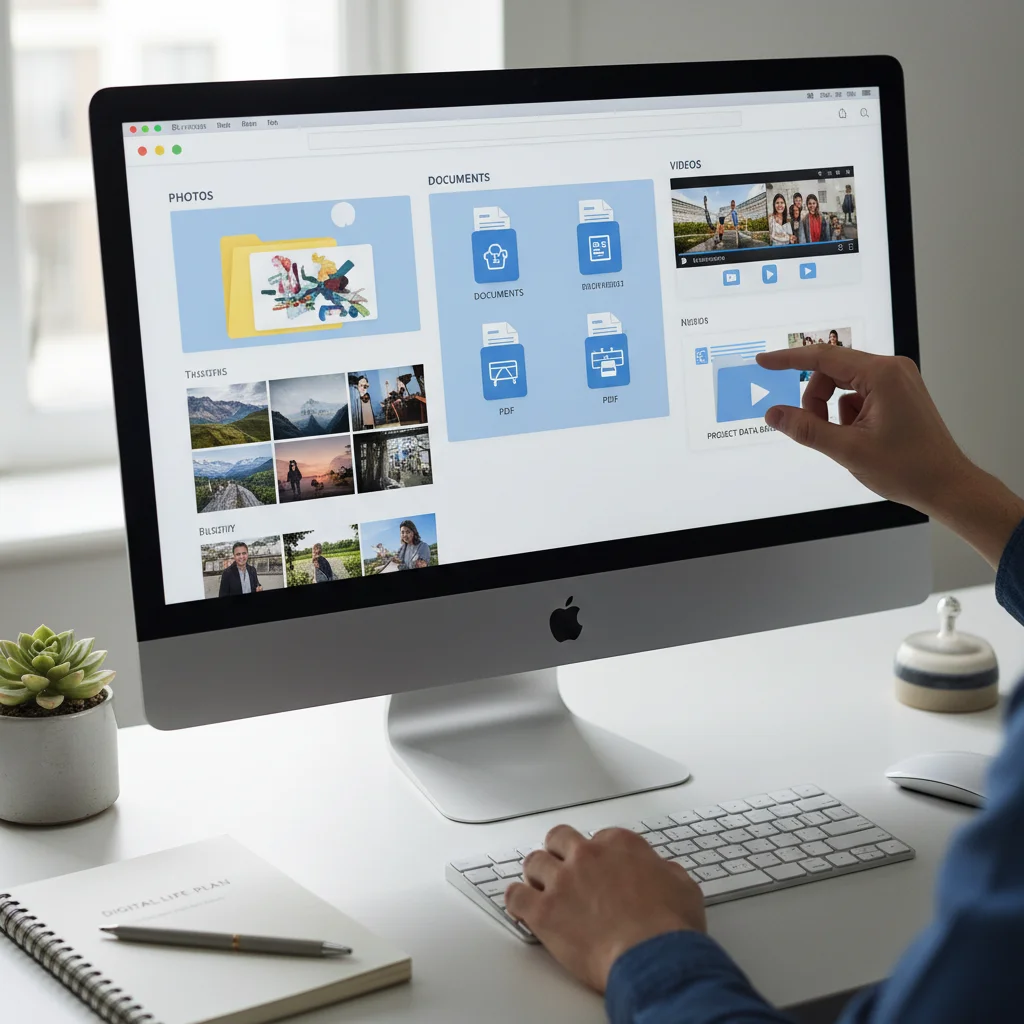
Before you can effectively back up your digital life, you need to understand exactly what you’re backing up. This initial step is crucial for creating an efficient and comprehensive backup plan. Think of it as decluttering your digital home before moving everything to a safe storage facility. Without proper identification and organization, your backup efforts might be incomplete or unnecessarily cumbersome.
What Constitutes Your Digital Life?
Your digital life extends far beyond just the files on your computer’s hard drive. It encompasses a vast array of data spread across multiple devices and online services. Here’s a breakdown of common digital assets you should consider:
- Personal Documents: Tax records, birth certificates, passports, wills, financial statements, medical records, resumes, academic transcripts.
- Photos and Videos: Family albums, travel videos, special occasion recordings, creative projects. These are often the most irreplaceable data points.
- Work-Related Files: Presentations, spreadsheets, reports, proposals, client communications, code repositories.
- Creative Projects: Music files, graphic designs, written works, art portfolios.
- Emails: Important correspondence, archived messages, contact lists.
- Browser Bookmarks and Settings: Saved websites, custom browser configurations.
- Software Licenses and Installation Files: Purchased software, operating system installers, product keys.
- Mobile Device Data: Contacts, messages, app data, photos, and videos from your smartphone or tablet.
- Social Media Data: While often stored on platforms, you might want to archive personal posts or interactions.
- Gaming Saves: For avid gamers, losing progress can be devastating.
The Art of Digital Organization
Once you’ve identified the types of data you possess, the next logical step is to organize them. A well-organized digital space makes the backup process significantly easier and more efficient. Consider these strategies:
- Consolidate Data: If you have photos scattered across multiple folders, devices, and cloud services, bring them together into a single, master location.
- Create a Logical Folder Structure: Develop a consistent folder hierarchy. For example, instead of a single ‘Documents’ folder, create ‘Documents > Financial > Taxes 2025’ or ‘Documents > Personal > Medical’. For photos, ‘Photos > 2025 > Family Vacation’ is much better than a jumble of unsorted images.
- Name Files Consistently: Use descriptive file names that include dates or keywords. ‘IMG_4567.jpg’ is less useful than ‘Smith_Wedding_Reception_2025-07-15_001.jpg’.
- Delete Duplicates and Unnecessary Files: Go through your data and remove anything you no longer need. This reduces the amount of data you need to back up, saving storage space and time.
- Utilize Tagging/Metadata: Many operating systems and photo management software allow you to tag files with keywords. This can be incredibly useful for searching and organizing, especially for large media libraries.
Prioritizing Your Data: What Can You Not Afford to Lose?
Not all data holds the same level of importance. While ideally, you’d back up everything, prioritizing helps you ensure that your most critical and irreplaceable files are always protected. Categorize your data into:
- Critical (Irreplaceable): Family photos, important legal documents, unique creative works, financial records. These are the files that would cause significant emotional distress or practical problems if lost.
- Important (Recreatable with Effort): Work documents that could be rebuilt (though it would take time), software installers (if you have the licenses), less critical emails.
- Non-Essential (Easily Recreatable or Disposable): Downloaded movies, temporary files, old drafts that are no longer relevant.
Focus your initial digital life backup efforts on the ‘Critical’ category. As you become more proficient, expand to ‘Important’ and then ‘Non-Essential’ data.
Step 2: Implement the 3-2-1 Backup Rule (The Gold Standard)
Once your digital assets are identified and organized, it’s time to put a robust backup strategy into action. The industry-standard and most highly recommended approach for comprehensive digital life backup is the 3-2-1 rule. This simple yet powerful principle ensures redundancy and protects your data against a wide range of potential failures.
Understanding the 3-2-1 Backup Rule
The 3-2-1 rule states:
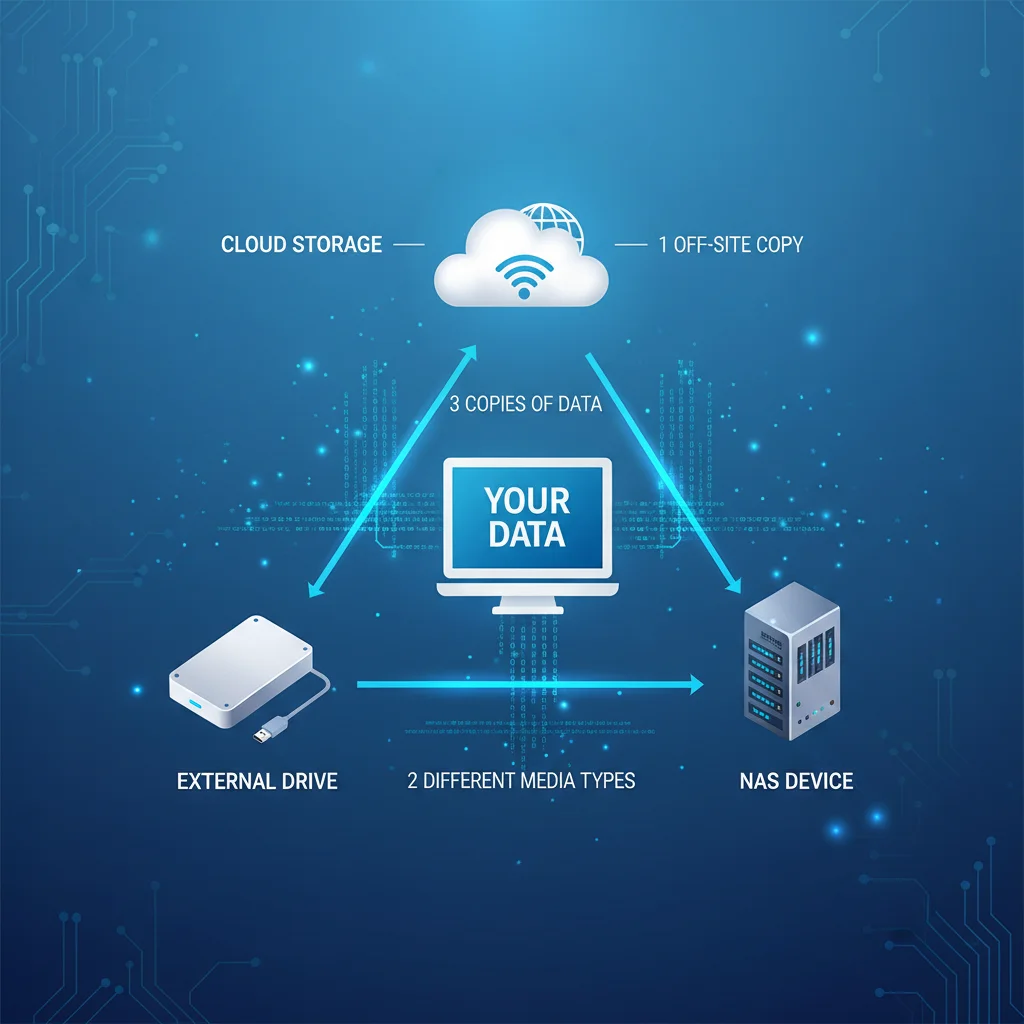
- 3 Copies of Your Data: Always have at least three copies of your data. This includes your primary data (the original files on your computer or device) and two separate backups.
- 2 Different Media Types: Store your backups on at least two different types of storage media. This protects against a single type of media failure (e.g., if external hard drives from a certain batch have a defect).
- 1 Offsite Copy: Keep at least one copy of your backup in an offsite location. This safeguards your data against localized disasters like fire, flood, theft, or a major power surge that could affect your primary location and any onsite backups.
Putting the 3-2-1 Rule into Practice for Your Digital Life Backup
Let’s break down how to achieve each part of the 3-2-1 rule using practical solutions available in 2026:
Copy 1: Your Primary Data (Original Files)
This is your everyday working data. It resides on your computer’s internal hard drive, your smartphone, or your tablet. Ensure these devices are regularly maintained, and consider using solid-state drives (SSDs) for their speed and durability.
Copies 2 & 3: Your Backups (Two Different Media Types)
This is where you diversify your storage. Common choices for different media types include:
-
External Hard Drives/SSDs:
- Pros: Relatively inexpensive, fast for local transfers, easy to use, portable.
- Cons: Susceptible to physical damage, theft if not secured, can be forgotten or misplaced.
- Best Use: Excellent for local, quick backups of large files. You could have one external drive for daily or weekly backups.
-
Network-Attached Storage (NAS) Devices:
- Pros: Centralized storage for multiple devices, accessible over your local network, often includes RAID (Redundant Array of Independent Disks) for internal drive redundancy, can be configured for remote access.
- Cons: Higher initial cost, requires some technical setup, vulnerable to local power issues or physical damage.
- Best Use: Ideal for home or small office environments needing shared storage and automated backups for multiple devices.
-
Cloud Storage Services:
- Pros: Automatic offsite copy, accessible from anywhere with internet, scalable storage, often includes versioning (ability to restore older versions of files).
- Cons: Requires an internet connection, potential privacy concerns (choose reputable providers), ongoing subscription costs, slower initial upload times for large data sets.
- Best Use: Perfect for the offsite copy and for smaller, frequently accessed files.
-
Optical Media (CDs/DVDs/Blu-rays):
- Pros: Very long shelf life if stored correctly, truly offline (immune to cyberattacks once burned).
- Cons: Low storage capacity compared to modern drives, slow to write, requires specific hardware, prone to scratches.
- Best Use: Archiving extremely critical, static data that rarely changes, like wedding photos or legal documents. Less practical for dynamic data.
For example, a common setup would be: your primary data on your computer (Copy 1), an external hard drive for local backups (Copy 2, Media Type 1), and a cloud storage service for offsite backups (Copy 3, Media Type 2, and the Offsite Copy).
Copy 1: Your Offsite Backup (Crucial for Disaster Recovery)
This is the most critical part of the 3-2-1 rule. Your offsite copy protects your data from catastrophic events that could destroy your primary devices and local backups simultaneously. Options for offsite storage:
- Cloud Storage Services: As mentioned, these automatically provide an offsite copy. Popular options include Google Drive, Dropbox, OneDrive, iCloud, Backblaze, Carbonite, and specialized services for larger data.
- Remote External Drive: Keep an external hard drive at a friend’s house, a relative’s home, or a safe deposit box. Rotate this drive periodically with another one kept at home to ensure backups are relatively current.
- Secondary NAS at a Different Location: For advanced users, setting up a second NAS at another physical location and configuring it to synchronize with your primary NAS provides robust offsite protection.
Remember, the goal of the 3-2-1 rule is redundancy and geographical separation. By adhering to this principle, you dramatically reduce the chances of permanent data loss.
Step 3: Automate, Verify, and Update Your Backup Strategy
Having a backup plan is one thing; consistently executing it is another. The best backup strategy is one that is largely automated and regularly verified. As we look towards 2026, automation tools are more sophisticated than ever, making this step easier than you might think.
Automate Your Backups
Manual backups are prone to human error, forgetfulness, and inconsistency. Automation is the key to ensuring your digital life backup is always up-to-date.
- Operating System Built-in Tools:
- Windows: File History (for personal files) and System Image Backup (for entire system snapshots).
- macOS: Time Machine is an excellent tool for automatic, incremental backups to an external drive or NAS.
- Third-Party Backup Software: Many excellent third-party tools offer more advanced features, such as incremental backups, differential backups, encryption, and more granular control over what gets backed up and when. Examples include Acronis Cyber Protect Home Office, EaseUS Todo Backup, and Macrium Reflect.
- Cloud Storage Sync Clients: Services like Dropbox, Google Drive, and OneDrive automatically sync files placed in their designated folders to the cloud. While primarily sync services, they act as an excellent offsite backup for those specific folders.
- NAS Device Features: Most NAS devices come with robust backup software that can automatically back up data from connected computers and even synchronize data to other cloud services or external drives.
- Mobile Device Backups: Ensure your smartphones and tablets are set to automatically back up to iCloud (for Apple devices), Google Photos/Drive (for Android), or other cloud services.
Set a schedule for your automated backups. For critical data, daily backups are advisable. For less frequently changed data, weekly or monthly might suffice. The goal is to minimize the potential data loss between backups.
Regularly Verify Your Backups
A backup is only good if you can restore from it. Many people diligently back up their data for years, only to find when disaster strikes that their backups are corrupted, incomplete, or simply don’t work. Verification is a non-negotiable part of a sound digital life backup strategy.
- Spot Checks: Periodically browse your backup drive or cloud storage. Open a few random files (documents, photos) to ensure they are intact and readable.
- Test Restores: At least once a year, perform a full test restore of a small, non-critical folder or file. This is the ultimate test to ensure your backup process is functional. If using system image backups, consider restoring to a spare drive or a virtual machine to confirm bootability.
- Check Backup Logs: Most backup software provides logs of successful and failed backups. Review these regularly to catch any issues early.
- Monitor Storage Health: For external hard drives and NAS, use SMART (Self-Monitoring, Analysis, and Reporting Technology) tools to monitor drive health. Cloud services usually handle their own infrastructure health.
Update Your Backup Strategy
The digital world doesn’t stand still, and neither should your backup strategy. As we look towards 2026 and beyond, new technologies emerge, and your data needs change.
- Review Annually: Set a reminder to review your entire digital life backup strategy at least once a year. Ask yourself:
- Have I acquired new devices or types of data that aren’t being backed up?
- Are my current backup solutions still meeting my needs in terms of speed, capacity, and reliability?
- Are there newer, more efficient, or more secure backup technologies I should consider?
- Have my critical data priorities changed?
- Stay Informed About Threats: Keep up-to-date with common cyber threats like ransomware. Ensure your backups are isolated from your primary system (e.g., external drives disconnected when not backing up, cloud backups with versioning) to prevent ransomware from encrypting your backups too.
- Consider Data Archiving: For very old, static data that you rarely access but want to keep indefinitely, consider long-term archiving solutions. These might include specialized archival cloud storage tiers or even robust optical media stored securely.
Advanced Considerations for Your Digital Life Backup in 2026
While the 3-2-1 rule forms the bedrock, here are some additional considerations to enhance your digital life backup:
Encryption for Sensitive Data
If you’re backing up sensitive personal or financial information, especially to cloud services or external drives that might leave your home, encryption is paramount. Most reputable cloud providers offer encryption at rest and in transit. For local backups, use disk encryption tools (like BitLocker for Windows or FileVault for macOS) or backup software that includes encryption features. This ensures that even if your backup media falls into the wrong hands, your data remains secure.
Version Control
Accidental deletions or corruption aren’t always immediately apparent. Versioning allows you to revert to older copies of a file, saving you from losing work or an uncorrupted version of a document. Many cloud services and advanced backup software offer version control, keeping multiple historical versions of your files.
Bootable Backups
For your primary computer, a bootable backup (also known as a clone or a system image) can be a lifesaver. This creates an exact copy of your entire hard drive, including the operating system, applications, and all your files. If your main drive fails, you can boot directly from the backup drive or restore the entire system to a new drive, getting you back up and running with minimal downtime.
Bandwidth and Data Caps
When considering cloud backups, be mindful of your internet bandwidth and any data caps imposed by your ISP. Initial uploads of large data sets can take a significant amount of time. Plan accordingly, perhaps initiating large backups overnight or during off-peak hours.
Cost-Benefit Analysis
Evaluate the cost of various backup solutions against the potential cost (both financial and emotional) of losing your data. Free cloud storage tiers are great for small amounts of data, but for comprehensive protection, investing in paid services or reliable hardware is often necessary and well worth it.
Conclusion: Your Digital Life Backup – A Continuous Journey
Protecting your digital life is not a one-time task; it’s an ongoing commitment. By following these three simple steps — identifying and organizing your data, implementing the robust 3-2-1 backup rule, and consistently automating, verifying, and updating your strategy — you can achieve unparalleled peace of mind.
In 2026, with the sheer volume and importance of our digital footprint, a proactive and diligent approach to digital life backup is more critical than ever. Don’t wait for a disaster to highlight the importance of your data. Start building your resilient backup strategy today, and ensure your precious memories, vital documents, and hard work are safeguarded for years to come. Your future self will thank you.