Mastering Your Smart TV: Optimal Setup for Performance & Privacy in 2026
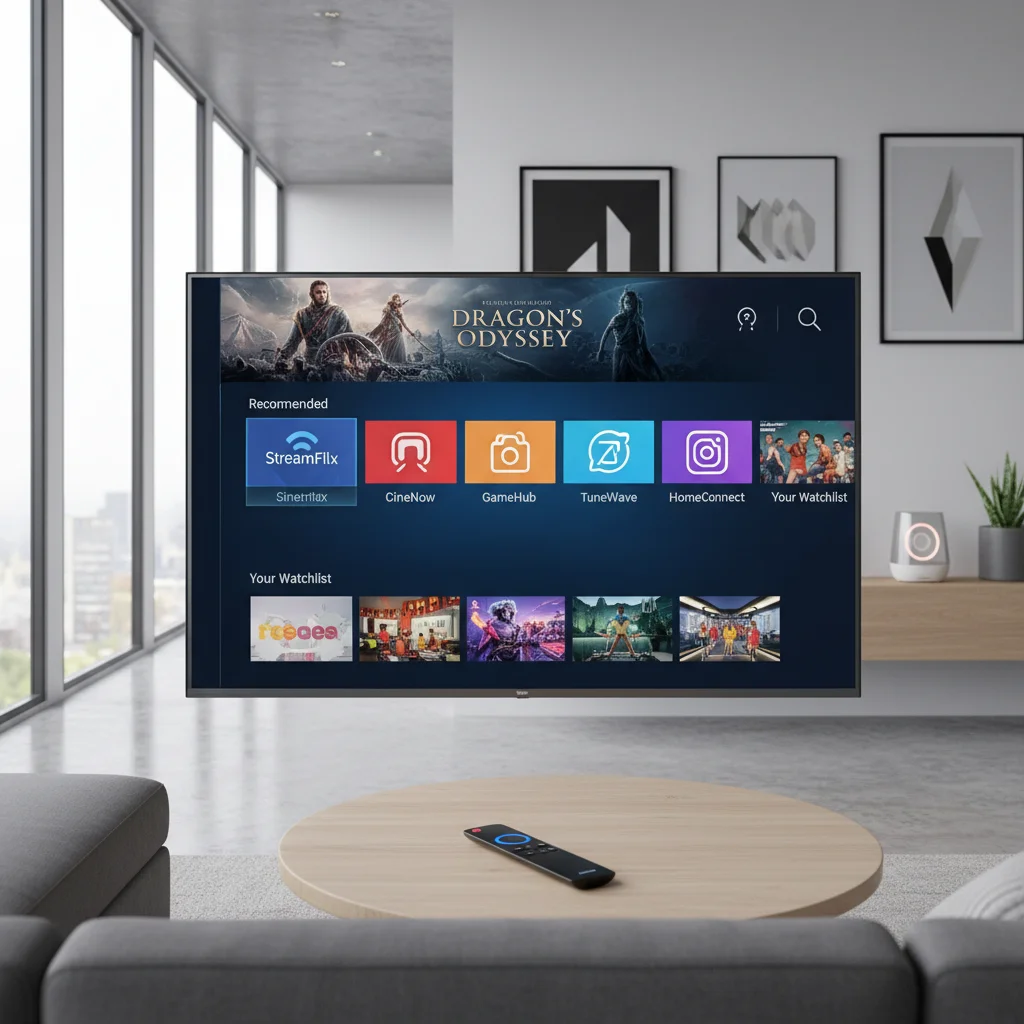
Welcome to the era of hyper-connected living, where your television is far more than just a screen; it’s a central hub for entertainment, information, and increasingly, an integral part of your smart home ecosystem. In 2026, the capabilities of smart TVs have expanded exponentially, offering breathtaking visual fidelity, intuitive user interfaces, and a vast ocean of content. However, with great power comes great responsibility – specifically, the responsibility to configure your new smart TV for optimal performance and, crucially, robust privacy and security. This comprehensive guide will walk you through every essential step to ensure your Smart TV Configuration 2026 is top-notch, delivering an unparalleled viewing experience while keeping your personal data safe.
Unboxing and Initial Setup: The Foundation of Your Smart TV Configuration 2026
The journey begins even before you power on your new device. Proper physical setup can significantly impact both performance and longevity. Here’s what you need to consider:
Physical Placement and Mounting
- Optimal Viewing Angle: Position your TV at eye level when seated, typically with the center of the screen at about 42 inches from the floor for a standard sofa. This minimizes neck strain and maximizes immersion.
- Lighting Conditions: Avoid placing the TV opposite a window or in direct sunlight, as glare can severely degrade picture quality. If unavoidable, invest in blackout curtains or blinds.
- Ventilation: Smart TVs generate heat. Ensure there’s adequate space around the TV for airflow, especially if it’s in a cabinet or mounted flush against a wall. Refer to your TV’s manual for recommended clearances.
- Cable Management: Plan your cable routing before mounting. Use cable ties or sleeves to keep wires tidy and prevent trip hazards. This also contributes to a cleaner aesthetic.
First Power-On and Basic Settings
Once physically set up, it’s time to bring your TV to life. The initial power-on sequence will guide you through several critical steps:
- Language and Region: Select your preferred language and geographical region. This affects channel tuning, app availability, and content recommendations.
- Network Connection: This is a cornerstone of your Smart TV Configuration 2026. Ideally, use a wired Ethernet connection for the most stable and fastest experience, especially for 4K/8K streaming. If Wi-Fi is your only option, ensure you’re connecting to a strong, secure network (WPA3 is preferred). Choose your 5GHz band if available for less interference and higher speeds.
- Software Updates: Immediately check for and install any available software updates. Manufacturers frequently release updates to improve performance, add features, and patch security vulnerabilities. This is a crucial early step for security.
- Terms and Conditions / Privacy Policies: While tempting to skip, take a moment to review these. This is where manufacturers often disclose data collection practices. While you might not be able to opt out of everything, understanding what you’re agreeing to is vital for privacy.
Picture and Sound Calibration: Maximizing Your Entertainment Experience
Out-of-the-box settings are rarely optimized for your specific viewing environment. Calibrating your picture and sound will dramatically enhance your entertainment.
Picture Settings for Optimal Visuals
Every TV brand has slightly different terminology, but the core settings are universal:
- Picture Mode: Start with a ‘Cinema’, ‘Movie’, or ‘Calibrated’ mode. These modes are typically designed to be the most accurate to industry standards, avoiding the oversaturated and overly bright ‘Vivid’ or ‘Dynamic’ modes often set as default for showroom appeal.
- Backlight/Brightness: Adjust this based on your room’s ambient lighting. In a dark room, a lower setting is usually sufficient. Too high can cause eye strain and wash out blacks.
- Contrast: Controls the difference between the brightest and darkest parts of the image. Adjust until bright areas are detailed without being blown out.
- Brightness (Black Level): This setting affects the depth of black. Too low and you lose shadow detail; too high and blacks appear grey.
- Color Saturation/Intensity: Adjust to achieve natural-looking skin tones and vibrant, but not artificial, colors.
- Tint/Hue: Generally, leave this at its default unless you notice a strong green or magenta push in images.
- Sharpness: Less is often more. High sharpness can introduce artificial edges and artifacts. Aim for a natural, detailed look without halos.
- Motion Smoothing (Soap Opera Effect): Most modern TVs have motion interpolation features (e.g., ‘TruMotion’, ‘MotionFlow’). While they can make sports look smoother, they often create an unnatural ‘soap opera effect’ for movies and TV shows. Experiment and disable if you find it distracting.
- Local Dimming: If your TV has this feature (often on LED/LCD TVs), enable it. It improves contrast by dimming specific zones of the backlight, resulting in deeper blacks.
- HDR Settings: For HDR content, ensure your TV is set to ‘HDR’ or ‘Enhanced’ mode for the HDMI input connected to your HDR source (e.g., Blu-ray player, gaming console).
Sound Settings for Immersive Audio
While external sound systems (soundbars, AV receivers) offer the best audio, you can still optimize your TV’s built-in speakers:
- Sound Mode: Choose a mode that suits your content – ‘Standard’, ‘Movie’, ‘Music’, ‘Clear Voice’.
- Equalizer (EQ): If available, adjust bass and treble to your preference. Boosting mid-range frequencies can sometimes improve dialogue clarity.
- Dialogue Enhancer: Many TVs offer a setting to boost dialogue, which can be very helpful for complex soundtracks.
- Volume Leveler/Auto Volume: This feature attempts to normalize volume levels across different channels and sources, preventing sudden loud commercials.
- Surround Sound Emulation: Some TVs offer virtual surround sound. Experiment to see if it enhances your experience without distorting audio.
Advanced Connectivity and Smart Features: Harnessing the Power of Your Smart TV
Your Smart TV Configuration 2026 extends beyond basic picture and sound to fully integrate with your digital life.
Connecting Peripherals and External Devices
- Gaming Consoles: Use the lowest latency HDMI input, often labeled ‘Game’ or ‘PC’. Enable ‘Game Mode’ on your TV to reduce input lag. Ensure HDMI CEC is configured if you want the TV to automatically switch inputs or power on/off connected devices.
- Soundbars/AV Receivers: Connect via HDMI ARC (Audio Return Channel) or eARC (Enhanced ARC) for seamless audio transmission and control. This allows your TV remote to control the soundbar’s volume.
- Streaming Devices (if applicable): While smart TVs have built-in apps, some users prefer external streaming sticks/boxes for specific interfaces or features. Connect these via HDMI.
- USB Drives: For playing local media, ensure your USB drive is formatted correctly (FAT32 or exFAT are common) and that your TV supports the media codecs.
Exploring and Organizing Smart TV Apps
- App Store: Navigate to your TV’s app store (e.g., Google Play Store, Samsung TV Plus, LG Content Store). Download your favorite streaming services, news apps, and utility tools.
- App Organization: Most smart TV interfaces allow you to reorder, add to favorites, or create folders for your apps. Keep frequently used apps easily accessible.
- Account Management: Sign in to your streaming service accounts. Remember to sign out if you’re selling or transferring ownership of the TV.
- Voice Assistants: Configure your TV’s built-in voice assistant (e.g., Google Assistant, Alexa, Bixby). This can offer convenient control over playback, searching for content, and even smart home devices.
Privacy and Security: Essential Steps for Your Smart TV Configuration 2026
This is arguably the most critical section of your Smart TV Configuration 2026. Smart TVs are computers connected to the internet, and like any computer, they are susceptible to privacy concerns and security risks if not properly configured.
Understanding Data Collection and Tracking
Many smart TVs collect data on your viewing habits, app usage, and even voice commands. This data is often used for personalized advertising, content recommendations, and product improvement.
Key Privacy Settings to Adjust
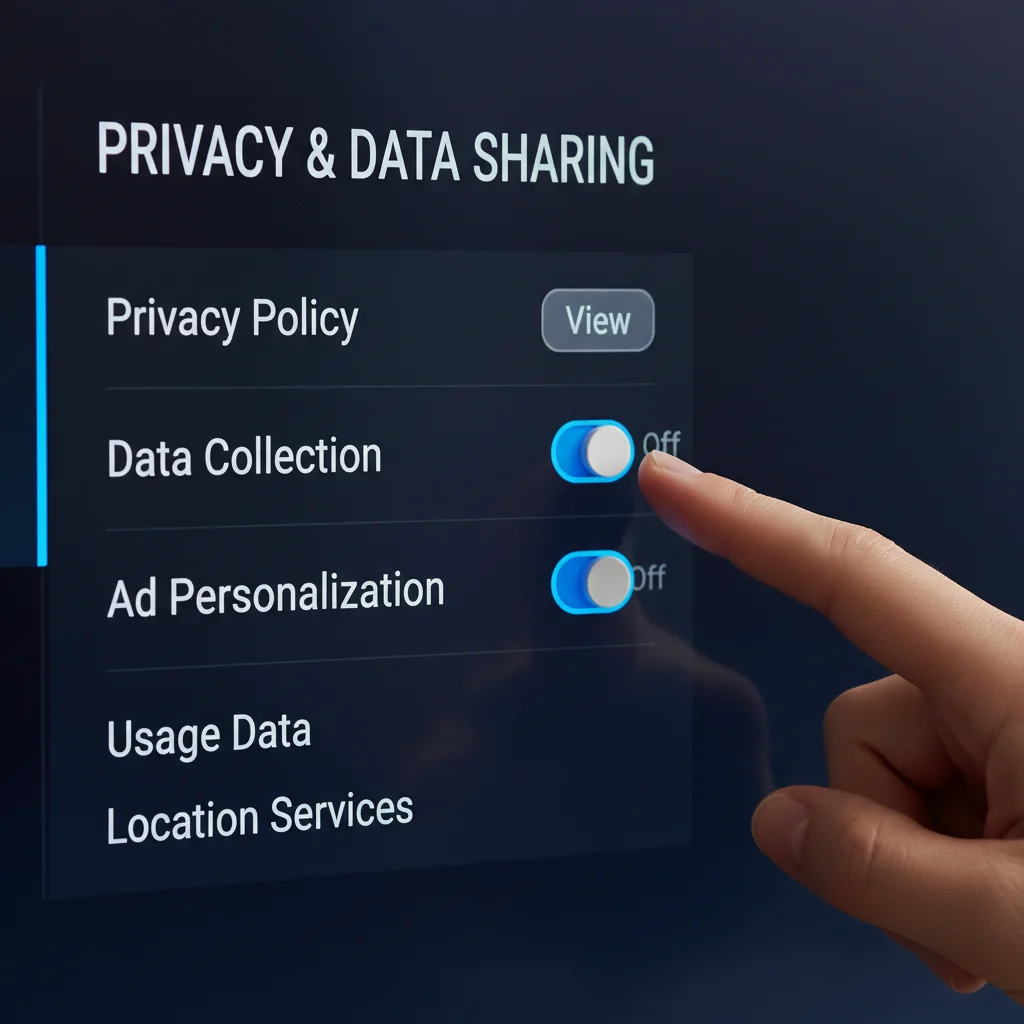
- Disable ACR (Automatic Content Recognition): ACR technology identifies what you’re watching (broadcast, streaming, or connected devices) and sends this data back to the TV manufacturer or third parties. Look for settings like ‘Viewing Information Services’, ‘Smart TV Experience’, ‘Interactive Services’, or ‘ACR’ in your TV’s privacy menu. Disabling this is a primary step to protect your viewing privacy.
- Opt Out of Personalized Ads: Even if you disable ACR, some data might still be collected for generic advertising or analytics. Look for options to ‘Limit Ad Tracking’, ‘Opt out of Interest-Based Ads’, or ‘Do Not Sell My Personal Information’.
- Microphone and Camera Permissions: If your TV has a built-in microphone for voice commands or a camera for video calls/facial recognition, review and restrict their permissions. Disable them when not in use, or if you don’t plan to use these features at all. Some TVs have physical switches to disable cameras/mics.
- Smart Home Integration Permissions: If your TV integrates with smart home platforms, be mindful of the data shared between devices. Grant only necessary permissions.
- Guest Mode: If available, use a guest mode or profile for visitors to prevent their viewing habits from influencing your recommendations or data collection.
Enhancing Your Smart TV’s Security
- Strong Wi-Fi Password: Ensure your home Wi-Fi network is secured with a strong, unique password. WPA3 is the most secure protocol; if not available, use WPA2.
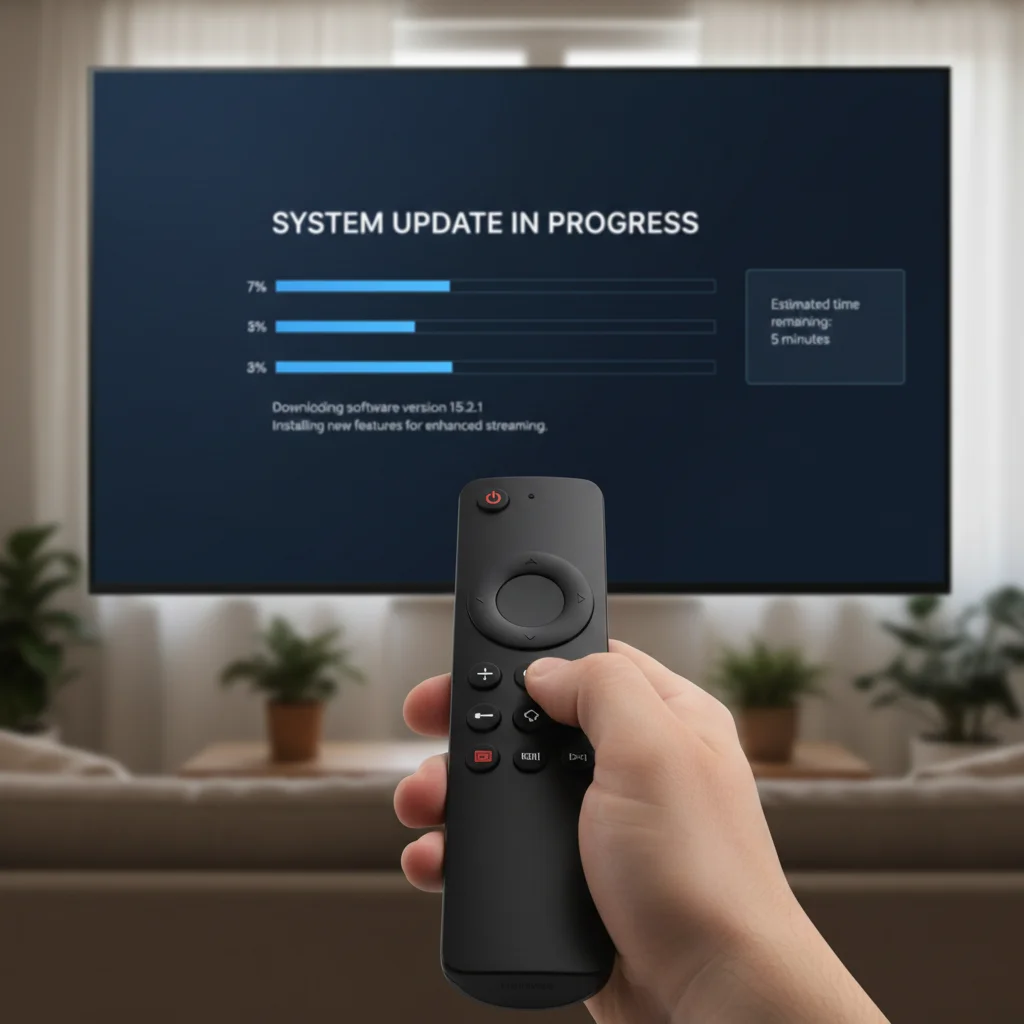
- Regular Software Updates: As mentioned earlier, keeping your TV’s firmware up-to-date is paramount. Updates often include critical security patches that protect against known vulnerabilities. Enable automatic updates if possible.
- Review App Permissions: Just like on your smartphone, apps on your smart TV may request access to certain features or data. Only grant permissions that are absolutely necessary for the app’s functionality.
- Use a VPN (Virtual Private Network): For advanced users concerned about online privacy and geo-restrictions, consider setting up a VPN on your router. This encrypts all internet traffic from devices connected to your network, including your smart TV.
- Disable Unused Features: If you don’t use features like Bluetooth, Miracast, or specific smart home integrations, disable them. Each active feature can potentially be an attack vector.
- Physical Security: Secure your TV physically to prevent theft, especially if it’s a high-value item.
Performance Optimization and Maintenance for Longevity
Even after initial setup, ongoing maintenance is key to keeping your smart TV running smoothly for years to come.
Managing Storage and Apps
- Clear Cache: Just like on a computer or phone, apps on your smart TV accumulate cache data. Periodically clear the cache for individual apps (found in app settings) or, if available, perform a system-wide cache clear. This can free up space and resolve performance issues.
- Uninstall Unused Apps: Delete any apps you don’t use. They consume storage space and can sometimes run in the background, slowing down your TV.
- Monitor Storage: Keep an eye on your TV’s internal storage. If it’s nearly full, performance will degrade.
Network Health and Troubleshooting
- Test Internet Speed: Use your TV’s built-in network test (if available) or a dedicated speed test app to ensure you’re getting adequate bandwidth for streaming.
- Router Placement: Ensure your Wi-Fi router is centrally located and not obstructed by large objects.
- Restart Router and TV: The classic ‘turn it off and on again’ often resolves connectivity issues. Periodically restart both your router and TV.
- DNS Settings: For some users, changing your TV’s DNS settings to a public DNS server (like Google DNS or Cloudflare DNS) can improve resolution times and potentially speed up content loading.
Regular Maintenance Practices
- Dusting: Regularly dust your TV screen and vents. Use a microfiber cloth for the screen and avoid harsh chemicals. Blocked vents can lead to overheating.
- Power Cycling: Occasionally, completely power off your TV (unplug it for a minute) to clear its internal memory and resolve minor glitches.
- Factory Reset (Last Resort): If your TV is experiencing persistent performance issues or you’re selling it, a factory reset will wipe all personal data and settings, returning it to its out-of-the-box state. Be sure to back up any critical settings or accounts if possible.
Future-Proofing Your Smart TV Configuration 2026
Technology evolves rapidly, but there are steps you can take to keep your Smart TV Configuration 2026 relevant for as long as possible.
Embracing New Standards
- HDMI 2.1: If your TV supports it, ensure you’re using HDMI 2.1 cables and connecting to HDMI 2.1 ports for devices that can take advantage of its features (e.g., 4K 120Hz gaming, VRR, ALLM).
- Wi-Fi 6/6E: If your router and TV support these newer Wi-Fi standards, you’ll benefit from faster speeds and better network efficiency, especially in congested environments.
- Matter/Thread: As smart home ecosystems continue to converge, look for TVs that support open standards like Matter and Thread for broader compatibility with future smart devices.
Staying Informed
- Follow Tech News: Keep an eye on tech news outlets and forums for updates on your TV brand and smart TV technology in general.
- Manufacturer Websites: Regularly check your TV manufacturer’s support website for firmware updates, FAQs, and troubleshooting guides.
- Community Forums: Online forums dedicated to smart TVs or specific brands can be invaluable resources for tips, tricks, and solutions to common problems.
Conclusion: A Smarter, Safer Viewing Experience
Configuring your new smart TV in 2026 is a multi-faceted process that goes beyond simply plugging it in. By meticulously adjusting picture and sound settings, optimizing smart features, and, most importantly, prioritizing your privacy and security, you transform your television from a passive display into a powerful, personalized, and protected entertainment hub. This guide to Smart TV Configuration 2026 empowers you to take control, ensuring you enjoy the best possible performance while safeguarding your digital footprint. Embrace the future of entertainment with confidence, knowing your smart TV is set up for optimal enjoyment and peace of mind.