Troubleshooting Common Wi-Fi Issues: A Practical Guide to Boosting Your Home Network in 2026

In an increasingly connected world, a robust and reliable home Wi-Fi network is no longer a luxury but a fundamental necessity. From streaming 4K movies and engaging in video conferences to smart home device management and online gaming, our daily lives revolve around seamless internet connectivity. However, nothing is more frustrating than a slow, unreliable Wi-Fi connection that constantly drops or struggles to keep up. If you’ve ever found yourself asking, ‘How can I truly boost home Wi-Fi performance?’ then you’re in the right place.
This comprehensive guide is designed to help you diagnose, understand, and resolve the most common Wi-Fi issues plaguing home networks today. We’ll delve into practical, actionable steps you can take to significantly improve your wireless experience in 2026 and beyond. Whether you’re a networking novice or a seasoned tech enthusiast, you’ll find valuable insights and solutions to ensure your home network operates at its peak.
Understanding the Fundamentals of Your Home Wi-Fi Network
Before we dive into troubleshooting, it’s crucial to grasp the basic components and principles of your home Wi-Fi network. This foundational knowledge will empower you to make informed decisions when trying to boost home Wi-Fi.
The Role of Your Router
Your Wi-Fi router is the heart of your home network. It acts as a central hub, receiving internet from your modem and broadcasting it wirelessly to all your devices. The router’s capabilities – its Wi-Fi standard (e.g., Wi-Fi 5/802.11ac, Wi-Fi 6/802.11ax), antenna design, and processing power – directly impact your network’s speed, range, and stability.
Frequency Bands: 2.4 GHz vs. 5 GHz
Most modern routers operate on two primary frequency bands:
- 2.4 GHz Band: This band offers a wider range and can penetrate walls and obstacles more effectively. However, it’s generally slower and more susceptible to interference from other devices (like microwaves, cordless phones, and Bluetooth devices) because it’s a very crowded spectrum.
- 5 GHz Band: This band provides faster speeds and less interference due to more available channels. The trade-off is a shorter range and poorer penetration through walls.
Understanding which band your devices are connected to, and when to use each, is a key step in optimizing your network and learning how to boost home Wi-Fi effectively.
Wi-Fi Standards
Wi-Fi technology evolves constantly. Here’s a quick overview of common standards:
- 802.11n (Wi-Fi 4): Older, but still widely used.
- 802.11ac (Wi-Fi 5): The most common standard for many years, offering good speeds.
- 802.11ax (Wi-Fi 6): The current mainstream standard, designed for higher speeds, better efficiency, and improved performance in congested environments.
- 802.11be (Wi-Fi 7): The latest and greatest, offering even higher speeds and lower latency, though still emerging in the consumer market.
Your router and devices should ideally support the same, newer standards to maximize performance.
Common Wi-Fi Issues and Initial Troubleshooting Steps
Before diving into advanced solutions, let’s tackle the low-hanging fruit. Many Wi-Fi problems can be resolved with simple checks and adjustments. These initial steps are crucial for anyone looking to boost home Wi-Fi without extensive technical knowledge.
1. The Classic Router Reboot
It sounds cliché, but turning your router off and on again (often called power cycling) is surprisingly effective. Routers, like any computer, can accumulate errors or get bogged down over time. A reboot clears its memory and restarts processes, often resolving connectivity glitches. Unplug your router and modem for about 30 seconds, then plug the modem back in, wait for it to fully boot up (usually indicated by stable lights), and then plug in your router.
2. Check Your Internet Service Provider (ISP) Status
Sometimes, the problem isn’t your Wi-Fi but your internet connection itself. Check your ISP’s website or social media for reported outages in your area. You can also try connecting a device directly to your modem via an Ethernet cable to see if the internet works without the router. If it doesn’t, the issue likely lies with your ISP.
3. Device-Specific Issues
Is the problem affecting all your devices or just one? If it’s just one device, try these steps:
- Toggle Wi-Fi off and on on the device.
- Forget the network and reconnect.
- Restart the device.
- Update the device’s network drivers/software.
4. Password and Network Name (SSID) Check
Ensure you’re connecting to the correct Wi-Fi network and entering the password correctly. It’s a simple mistake, but it happens!
Optimizing Router Placement: The Foundation to Boost Home Wi-Fi
The physical location of your router is arguably the most critical factor influencing your Wi-Fi signal strength and coverage. A poorly placed router can severely hinder your ability to boost home Wi-Fi. Think of your Wi-Fi signal as sound waves; they diminish and get blocked by obstacles.
Central Location is Key
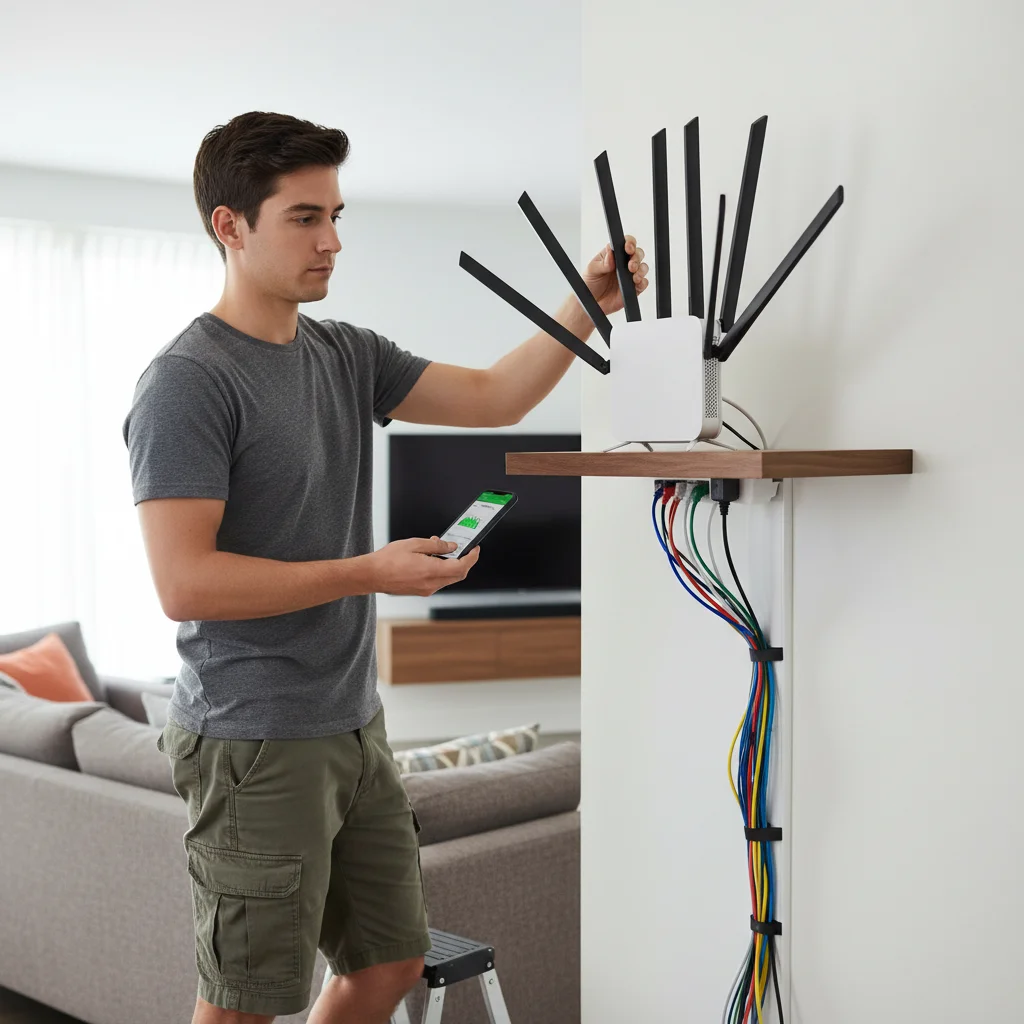
Place your router in a central, open location in your home. Avoid corners, closets, or behind large furniture. The goal is to minimize the number of walls and obstructions the signal has to pass through to reach your devices.
Elevate Your Router
Wi-Fi signals tend to spread outwards and downwards. Placing your router on a higher shelf or table helps distribute the signal more evenly throughout your home, especially to devices on different floors.
Avoid Obstacles and Interference Sources
- Physical Obstacles: Walls (especially thick ones or those with plumbing), metal objects (filing cabinets, large appliances), and even water (fish tanks) can absorb or block Wi-Fi signals.
- Electronic Interference: Keep your router away from other electronics that emit radio waves, such as microwaves, cordless phones, baby monitors, and even strong electrical wiring. These can operate on the same 2.4 GHz band and cause significant interference.
Adjust Antennas (If Applicable)
If your router has external antennas, experiment with their orientation. For a single-story home, try pointing them vertically. In a multi-story home, you might try angling one horizontally and one vertically to cover different floors. There’s no one-size-fits-all, so some trial and error might be necessary.
Advanced Troubleshooting: Diving Deeper to Boost Home Wi-Fi
If the basic steps haven’t yielded satisfactory results, it’s time to delve into more advanced configurations and considerations within your router’s settings. These adjustments can significantly boost home Wi-Fi performance.
1. Change Wi-Fi Channels
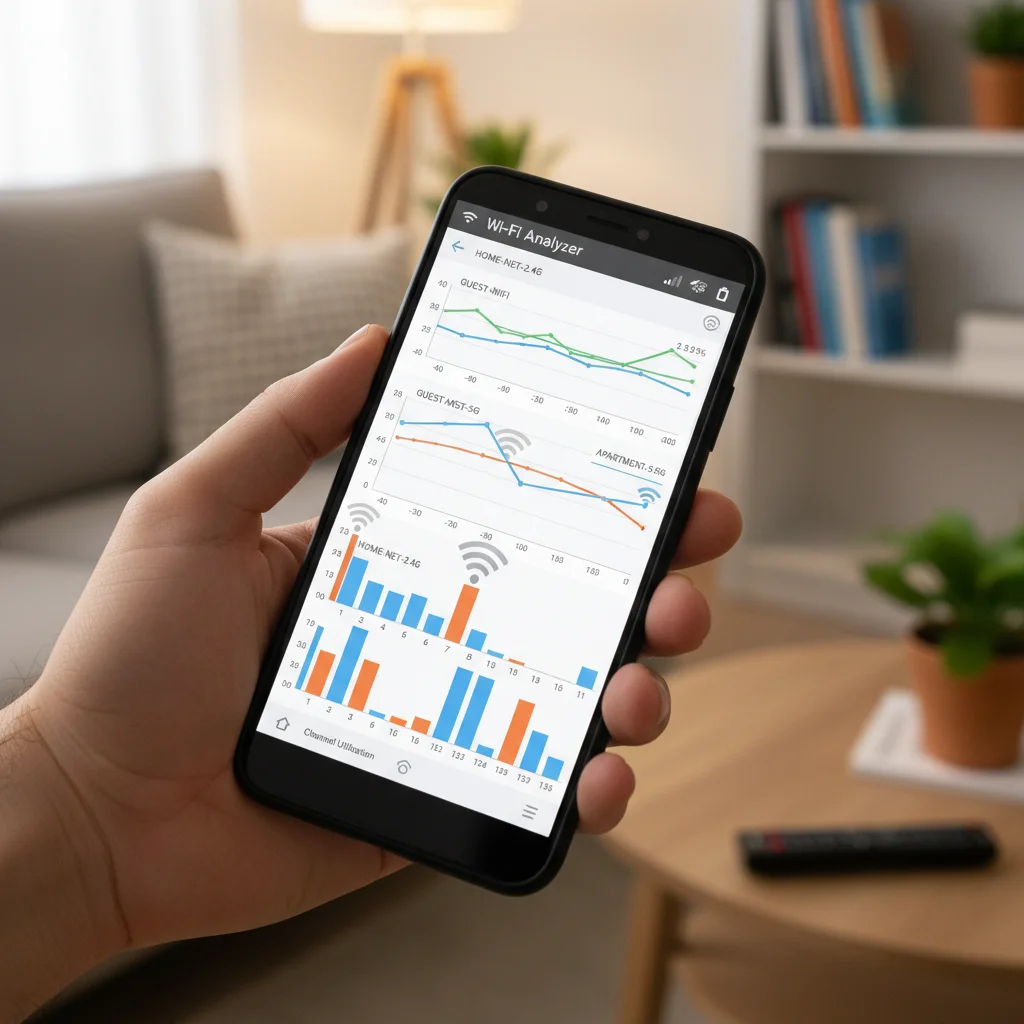
Just like roads, Wi-Fi channels can get congested. If your neighbors are using the same Wi-Fi channel as you, it can lead to slowdowns and dropped connections. Most routers automatically select a channel, but sometimes they don’t choose the optimal one.
You can use a Wi-Fi analyzer app (available for smartphones and computers) to identify the least congested channels in your area. For the 2.4 GHz band, channels 1, 6, and 11 are non-overlapping and generally recommended. For the 5 GHz band, there are many more non-overlapping channels, offering greater flexibility.
Access your router’s administration page (usually by typing its IP address, like 192.168.1.1 or 192.168.0.1, into a web browser) and look for Wi-Fi settings to manually change the channel.
2. Update Router Firmware
Router manufacturers regularly release firmware updates that can improve performance, add new features, and patch security vulnerabilities. Check your router manufacturer’s website for the latest firmware and follow their instructions carefully to update it. This simple step can often provide a noticeable boost home Wi-Fi.
3. Utilize Both 2.4 GHz and 5 GHz Bands Strategically
If your router supports both bands and uses a single SSID (network name) for both (often called band steering), it *should* automatically connect devices to the best band. However, this doesn’t always work perfectly. Consider separating your Wi-Fi networks into two distinct SSIDs (e.g., ‘MyHomeWifi_2.4GHz’ and ‘MyHomeWifi_5GHz’).
- Connect devices that need high speed and are close to the router (e.g., streaming devices, gaming consoles, primary laptops) to the 5 GHz band.
- Connect devices that are further away or don’t require high bandwidth (e.g., smart home devices, older phones, IoT gadgets) to the 2.4 GHz band.
4. Adjust Wi-Fi Channel Width
Channel width affects speed and range. For 2.4 GHz, use 20 MHz for better compatibility and less interference, especially in crowded areas. For 5 GHz, you can often use 40 MHz or even 80 MHz (if available and supported by your devices) for higher speeds, but this might reduce range. Experiment to find the best balance for your environment to boost home Wi-Fi.
5. Quality of Service (QoS) Settings
QoS is a router feature that allows you to prioritize certain types of network traffic over others. If you frequently game online or make video calls, you can configure QoS to give these activities priority, ensuring they get the bandwidth they need even when other devices are active. This can prevent lag and stuttering, significantly improving the experience for critical applications.
6. Disable Old Wi-Fi Standards
If your router supports older Wi-Fi standards (like 802.11b or g) alongside newer ones, it might be dragging down your network. Older standards require more airtime and can force the entire network to slow down to accommodate them. If you don’t have any legacy devices that *only* support these older standards, consider disabling them in your router settings to only allow 802.11n, ac, or ax.
Hardware Upgrades and Network Expansion to Boost Home Wi-Fi
Sometimes, no amount of software tweaking can overcome the limitations of outdated or inadequate hardware. If you’ve tried all the above and still struggle, it might be time to consider upgrading or expanding your network infrastructure.
1. Upgrade Your Router
If your router is several years old, it likely doesn’t support the latest Wi-Fi standards (like Wi-Fi 6/802.11ax) or possess the processing power to handle multiple demanding devices simultaneously. A new, high-performance router can make a significant difference in speed, range, and overall network stability. Look for routers with:
- Latest Wi-Fi Standard: Wi-Fi 6 (802.11ax) or newer for future-proofing.
- Dual-Band or Tri-Band: More bands mean more capacity for devices.
- MU-MIMO Technology: Allows the router to communicate with multiple devices simultaneously, improving efficiency.
- Beamforming: Directs Wi-Fi signals towards connected devices, rather than broadcasting uniformly.
- Strong Processor and RAM: Essential for handling heavy network traffic.
2. Consider a Mesh Wi-Fi System
For larger homes or those with complex layouts (e.g., multiple floors, thick walls), a single router often can’t provide adequate coverage. Mesh Wi-Fi systems consist of multiple interconnected units (a main router and several satellite nodes) that work together to create a single, seamless Wi-Fi network throughout your entire home. This eliminates dead zones and provides consistent speeds everywhere, making it an excellent way to truly boost home Wi-Fi coverage.
3. Wi-Fi Extenders/Repeaters (Use with Caution)
Wi-Fi extenders or repeaters can expand your Wi-Fi signal into dead zones. However, they typically halve the bandwidth as they have to receive and re-transmit the signal on the same radio. They are a cheaper alternative to mesh systems but often result in reduced speeds. Use them only when other options are not feasible, and place them strategically where they can still receive a good signal from the main router.
4. Powerline Adapters
Powerline adapters use your home’s electrical wiring to extend your network connection. You plug one adapter into an electrical outlet near your router and connect it via Ethernet. Then, plug another adapter into an outlet in a different room and connect a device (or a secondary Wi-Fi access point) to it. This can be a good solution for extending wired or wireless connectivity to areas where Wi-Fi struggles, without running long Ethernet cables.
5. Wired Connections for Stationary Devices
For devices that don’t move (desktop PCs, smart TVs, gaming consoles, network-attached storage), a wired Ethernet connection is always superior to Wi-Fi. It offers maximum speed, lowest latency, and unparalleled stability. Use Ethernet whenever possible to free up Wi-Fi bandwidth for your mobile devices and further boost home Wi-Fi efficiency.
Maintaining Your Optimized Wi-Fi Network
Optimizing your Wi-Fi is not a one-time task. Regular maintenance and awareness can help sustain a fast and reliable connection.
Regular Router Reboots
Even after optimization, a weekly or bi-weekly router reboot can help maintain performance and clear out any accumulated issues.
Monitor Your Network
Use network monitoring tools or your router’s administration page to keep an eye on connected devices, bandwidth usage, and potential interference. Some routers offer built-in diagnostic tools.
Secure Your Network
A strong, unique Wi-Fi password (WPA2 or WPA3 encryption) is essential to prevent unauthorized access. Unwanted users can hog your bandwidth and compromise your security. Regularly change your Wi-Fi password and consider enabling a guest network for visitors.
Keep Devices Updated
Ensure that the operating systems and network drivers on all your connected devices (laptops, smartphones, smart TVs) are up to date. Outdated drivers can lead to connectivity issues or suboptimal performance.
Review Your ISP Plan
Are you paying for enough speed? If you have many users, stream high-bandwidth content, or download large files frequently, an entry-level internet plan might be your bottleneck. Contact your ISP to review your plan and consider upgrading if necessary. No amount of Wi-Fi optimization can overcome an insufficient internet subscription.
Looking Ahead to 2026 and Beyond
As we move further into 2026, the demands on our home networks will only continue to grow. The proliferation of smart home devices, virtual reality, augmented reality, and cloud-based services means that a robust Wi-Fi network is more crucial than ever. Technologies like Wi-Fi 6E (which uses the 6 GHz band for even more capacity) and the emerging Wi-Fi 7 will offer unprecedented speeds and lower latency. Investing in these newer technologies now, or as they become more mainstream, will be key to future-proofing your home network and continuing to boost home Wi-Fi performance for years to come.
Conclusion
A slow and unreliable Wi-Fi connection can be a major source of frustration, but it doesn’t have to be a permanent fixture in your home. By systematically applying the troubleshooting techniques and optimization strategies outlined in this guide, you can diagnose and resolve most common Wi-Fi issues. From understanding basic router placement to delving into advanced channel configurations and considering hardware upgrades like mesh systems, you now have a comprehensive toolkit to significantly boost home Wi-Fi performance.
Remember, patience and a methodical approach are your best allies. Start with the simplest solutions and gradually work your way to more complex ones. With a little effort, you can transform your sluggish network into a fast, stable, and reliable Wi-Fi powerhouse, ensuring a seamless digital experience for everyone in your home in 2026 and beyond. Happy networking!